
Your login email is the address you sign in with. Each user on the account has their own, and each user changes their own from the Account settings page. Changing it does not affect your business email, which is what customers see and where booking notifications go.
What it changes (and what it does not)
Changing your login email only changes the address you use to sign in. It applies to your login alone, so other users on the account are not affected.
It does not change your business email, the address used on booking notification emails and shown on your public booking page. That one lives in the Business details card and is edited there directly.
How to change it
- 1
Open the Login email card
Go to Account in the sidebar and find the Login email card. It shows the address you currently sign in with. Click Change email.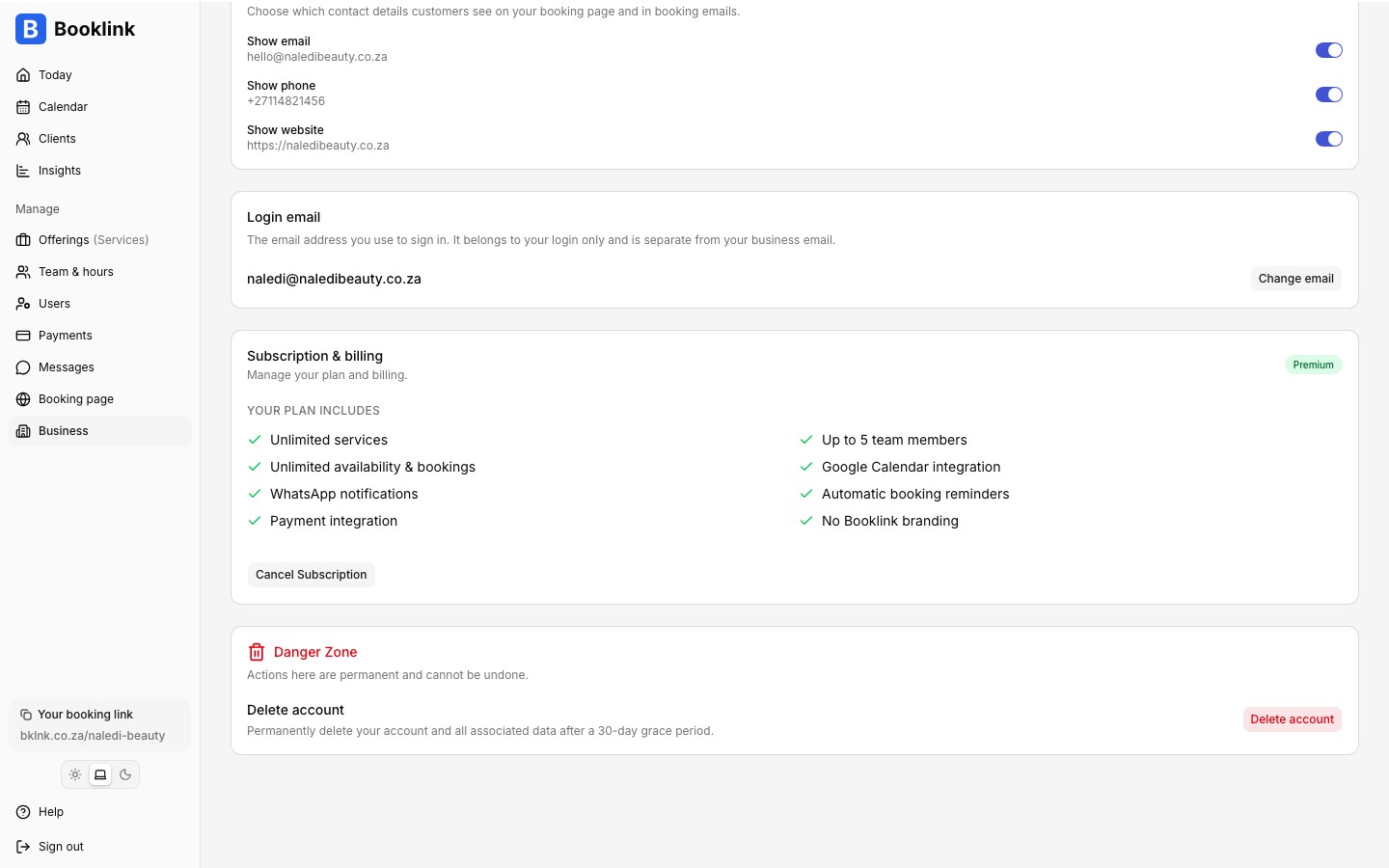
- 2
Enter the new address
Type the new email address and click Send code. We send a 6-digit code to the new address, not your current one, to prove you control that inbox. - 3
Enter the code
Open the new inbox, find the code, and enter it in the dialog. The code expires after 10 minutes. If it does not arrive, click Didn't get it? Re-enter email to check the address and request a fresh code.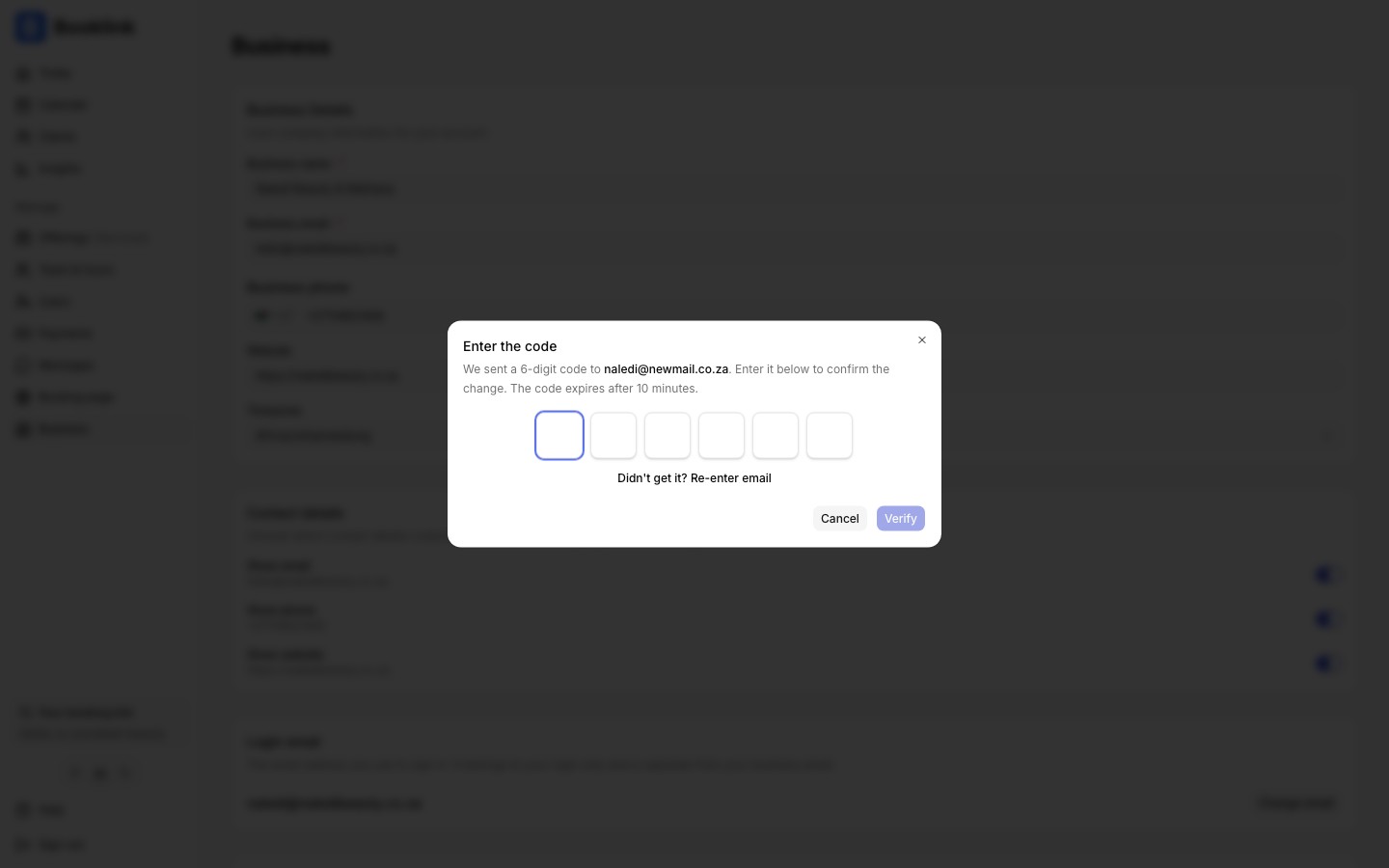
A typo cannot lock you out
Your login email only switches once the code is confirmed. If you mistype the new address, the code never reaches you, nothing changes, and you keep signing in with your current email.Email already in use?
Every login email must be unique. If the new address already belongs to another login on Booklink, the change is rejected with an "Email already in use" message. Pick a different address, or remove the other user account first if it is an old one of yours.