
Booklink supports online payments through South African payment gateways. Once you connect a gateway, you can set a price on any service and require clients to pay at the time of booking. This reduces no-shows and means money is in your account before the appointment.
Supported payment gateways
Booklink currently supports four South African payment providers:
- Yoco: popular with small South African businesses, accepts major debit and credit cards, quick sign-up.
- Paystack: widely used across Africa, supports card payments, competitive fees.
- PayFast: established South African gateway, accepts cards, EFT, and SCode payments.
- iKhokha: South African provider known for its card machines, with online payments via iK Pay.
You only need to connect one payment gateway. Choose the one you already have an account with, or the one whose fees and features suit your business best.
Payment gateway requirements
To connect a payment gateway you will need:
- An active merchant account with the chosen provider
- Your API credentials (the exact fields depend on the provider; see the setup article)
- A Pro Booklink subscription; payment integrations are not available on the free plan
- Auto-confirm bookings switched on, since paid bookings confirm automatically on successful payment
How to connect
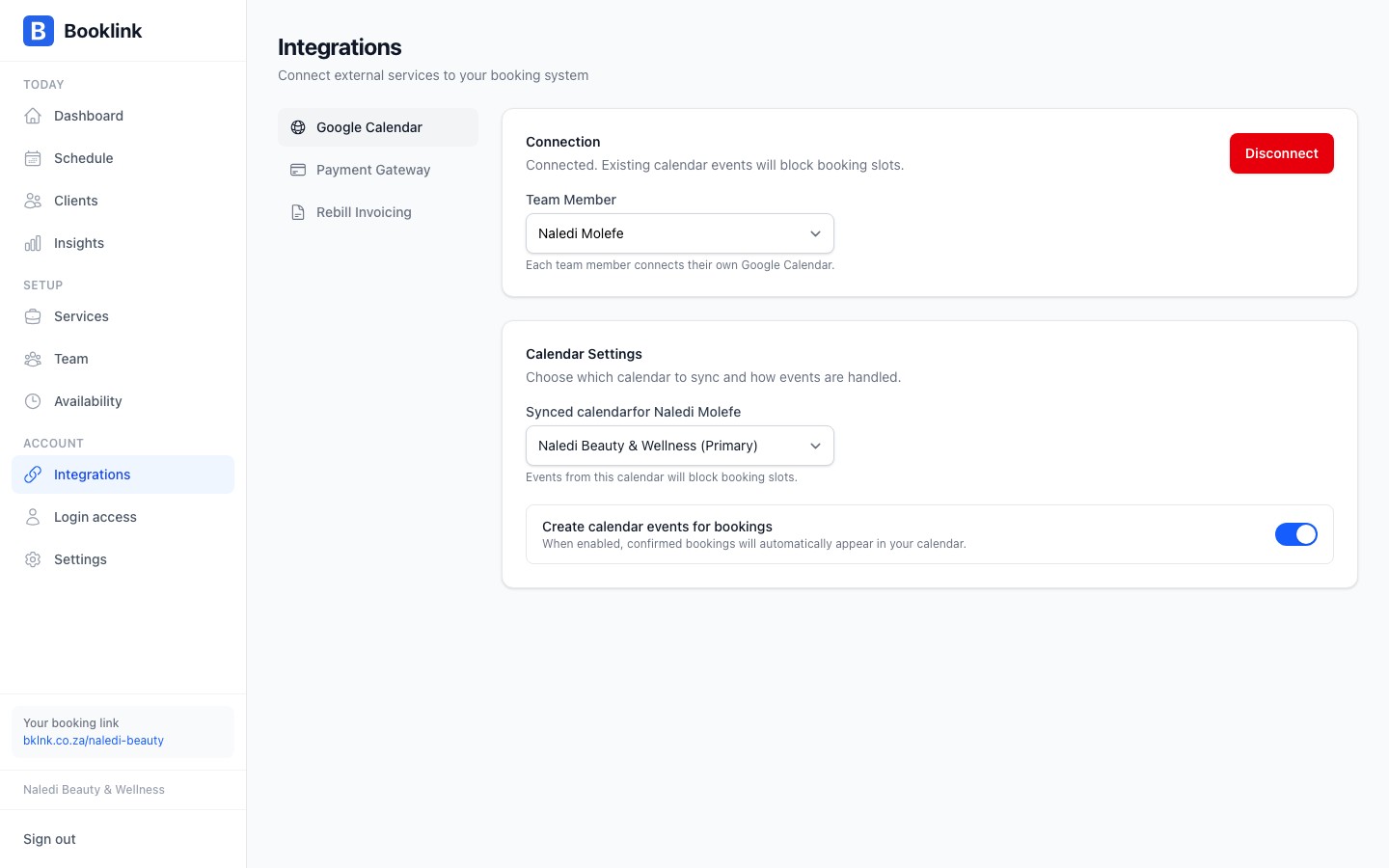
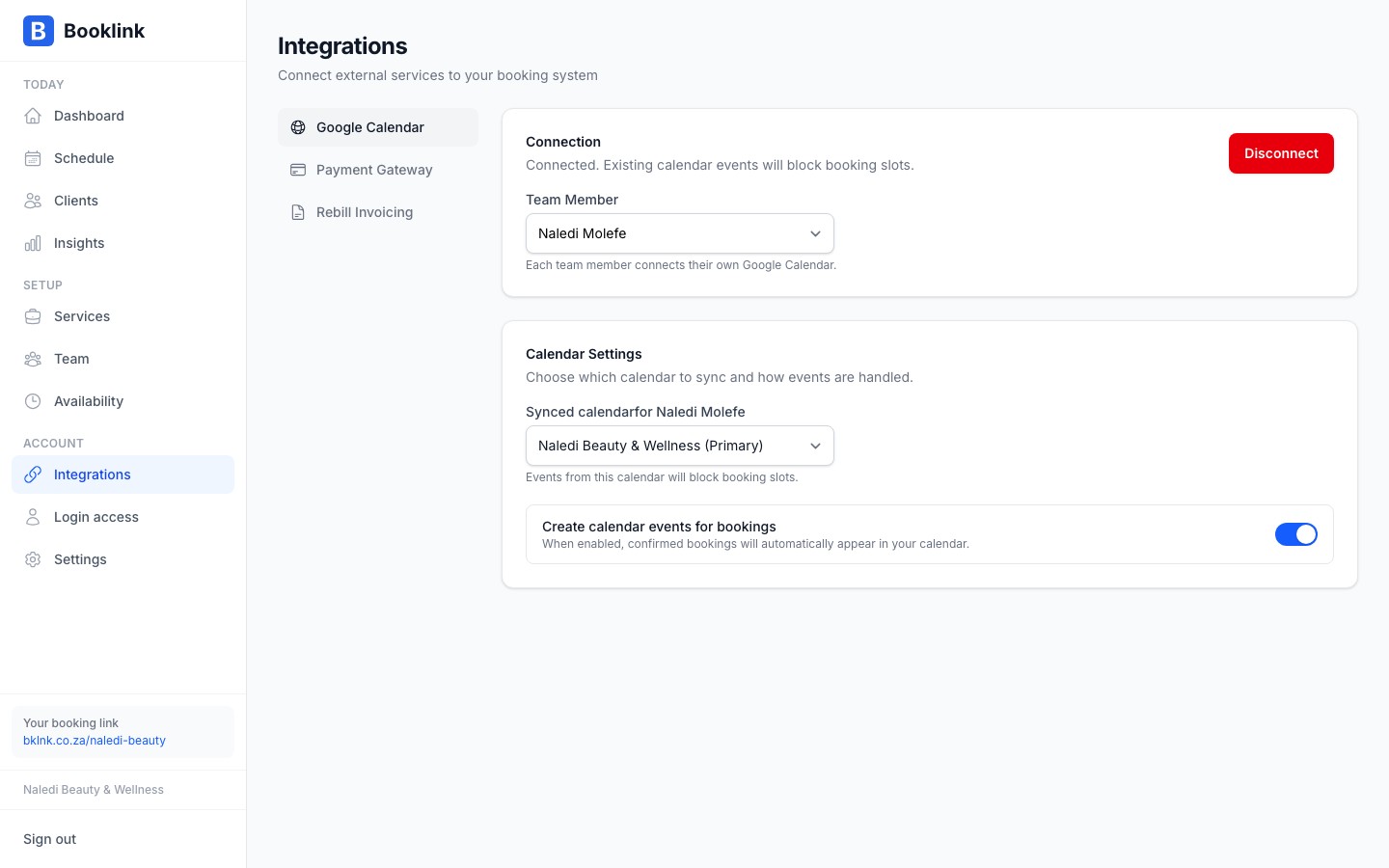
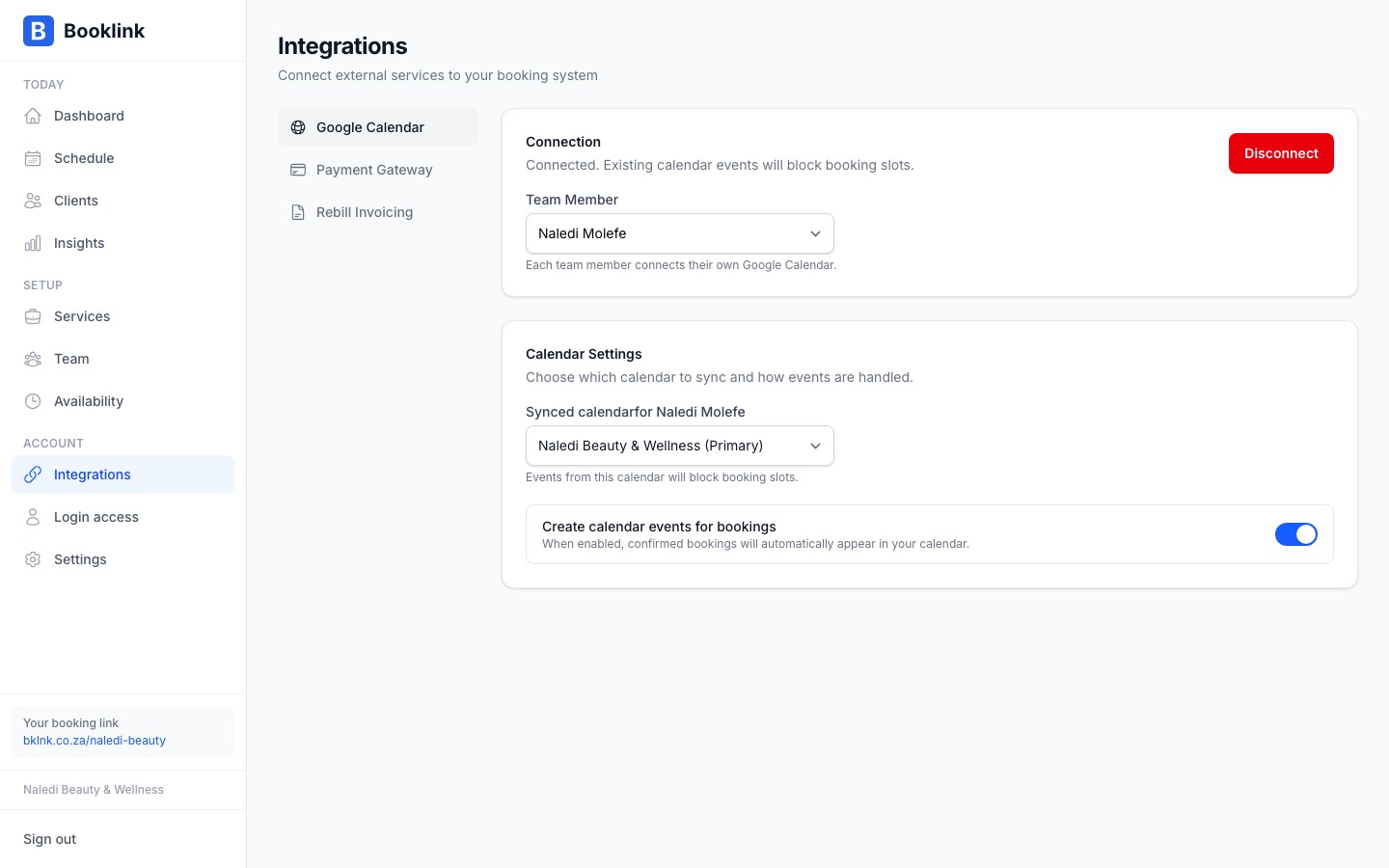
Go to Payments in the sidebar and click Connect gateway. Pick your provider and enter its credentials. Booklink verifies the credentials with the provider when you click Connect; if something is wrong you get an error straight away instead of failed payments later. For the exact credentials each provider needs, see the Payment gateway setup article.
Making a service require payment
Once your payment gateway is connected, deposits and payment requirements are set per service: open the service from Offerings and configure its payment settings. Booklink directs clients to checkout when they book a service that requires payment.
Invoicing automation (Rebill)
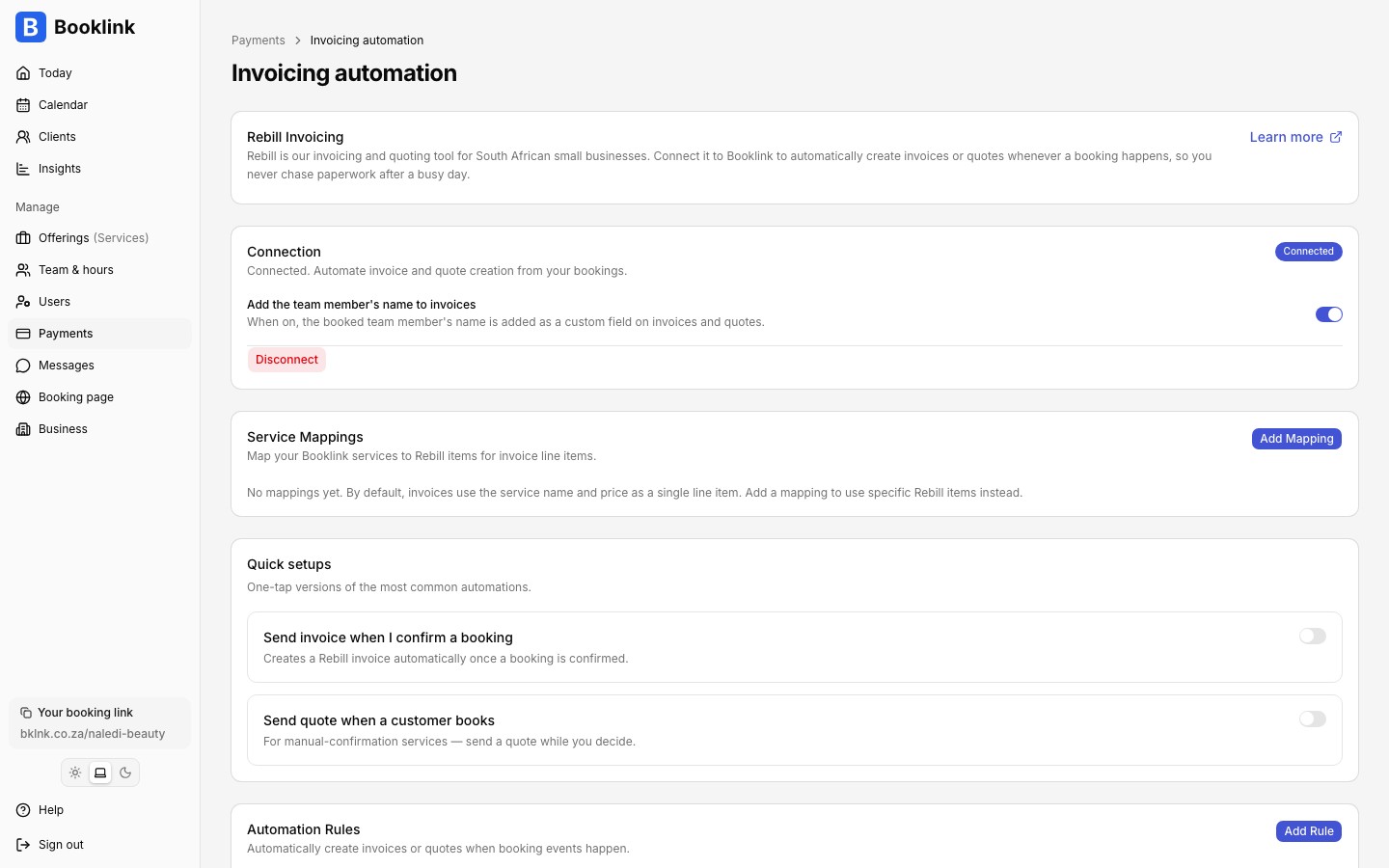
The Payments page also links to Invoicing automation, which connects your Booklink account to Rebill so invoices or quotes are created automatically from your bookings. Once connected, an extra switch lets you add the booked team member's name to invoices: when on, the team member's name is included as a custom field on the invoices and quotes Rebill creates.
Test before going live
Most payment providers offer a test or sandbox mode (iKhokha has a test mode switch right on the connect form). Use this to make a test booking through your own booking page and verify that payment, confirmation emails, and the dashboard all update correctly before accepting real client payments.