
Booking terms are optional. When set, customers must check an acceptance box before they can complete a booking. Terms support markdown for headings, lists, bold text, and links. The exact text the customer accepted is snapshotted onto the booking and included in their confirmation email. Even if you change the terms later, past bookings keep the version that was accepted.
Account-wide booking terms
Account-wide terms apply to every service that does not have its own custom terms. This is the simplest way to enforce a single booking policy across your whole business.
- 1
Go to Defaults settings
Click Defaults in the sidebar and scroll to the Booking terms card.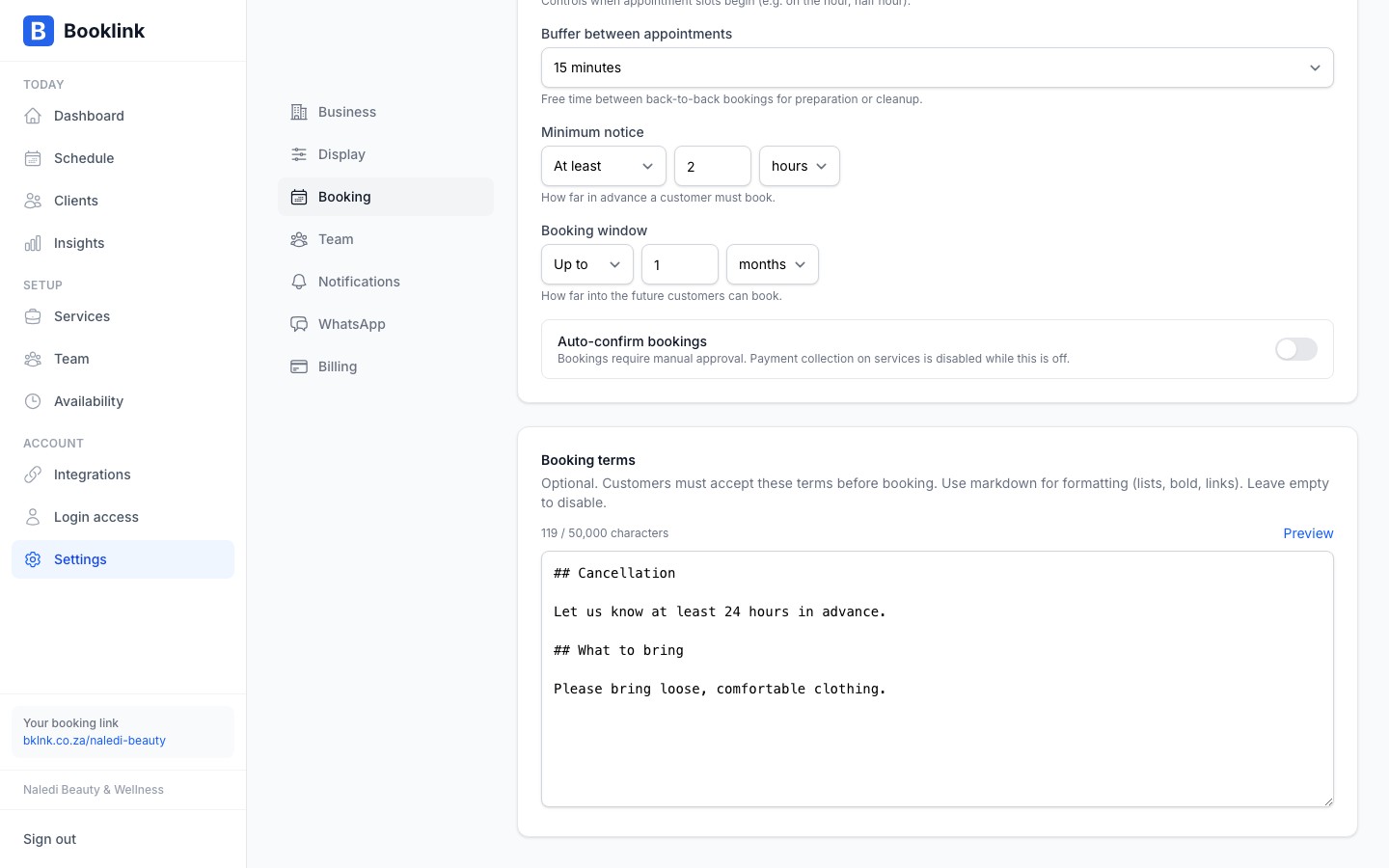
- 2
Write your terms
Type your terms into the editor. Markdown is supported. Use##for headings,-for lists,**bold**for emphasis, and standard link syntax. The character counter shows how much room you have (50,000 characters). - 3
Preview before saving
Click Preview to see how the rendered terms will look to customers. Switch back to Edit to keep changing the text.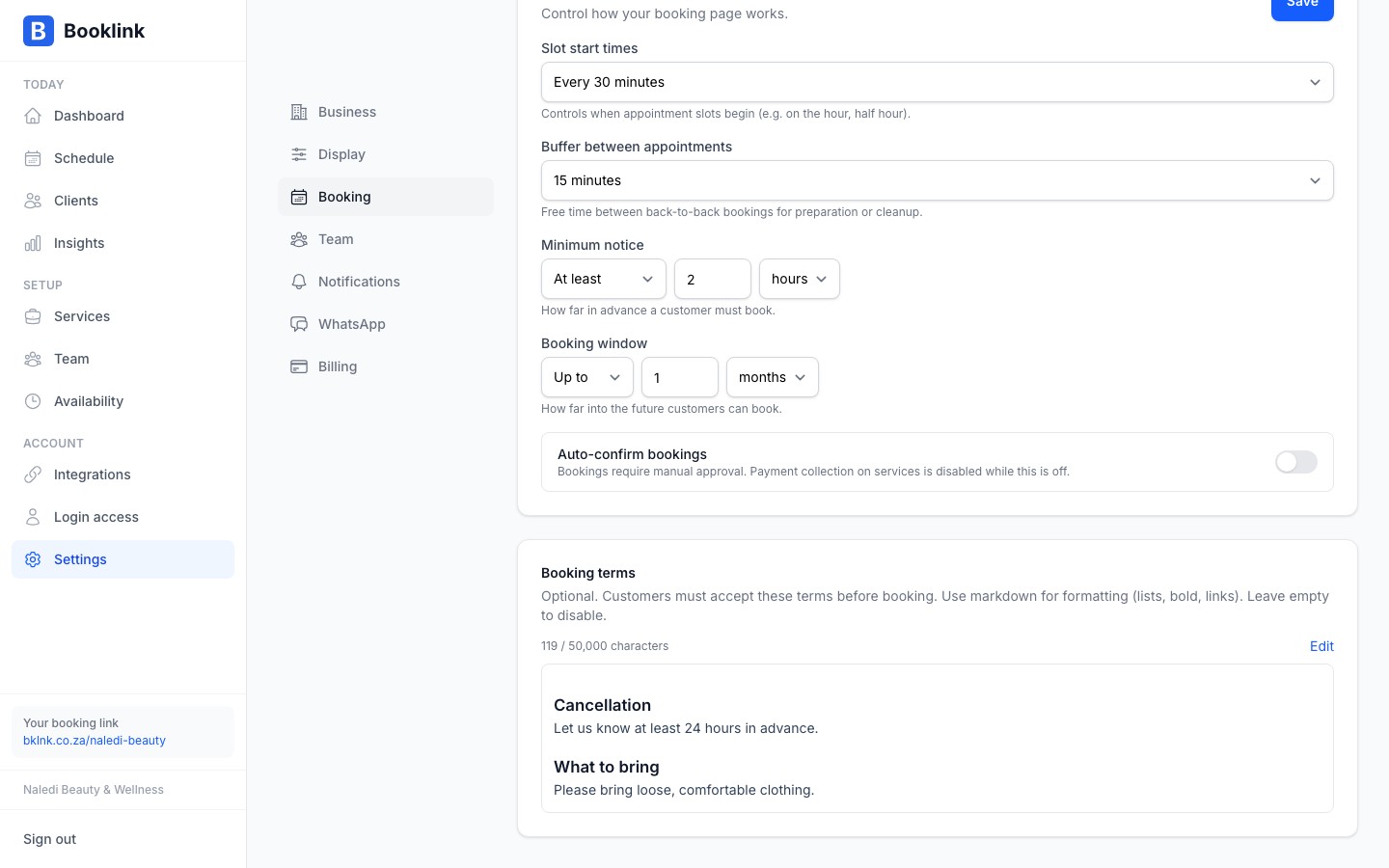
- 4
Save
Click Save in the save bar to apply your changes. Existing bookings are not affected. The snapshot they accepted at the time stays the same.
Leave empty to disable
Clearing the textarea and saving disables the acceptance gate on the public booking page for any service that uses the account default. No checkbox appears to customers.Per-service overrides
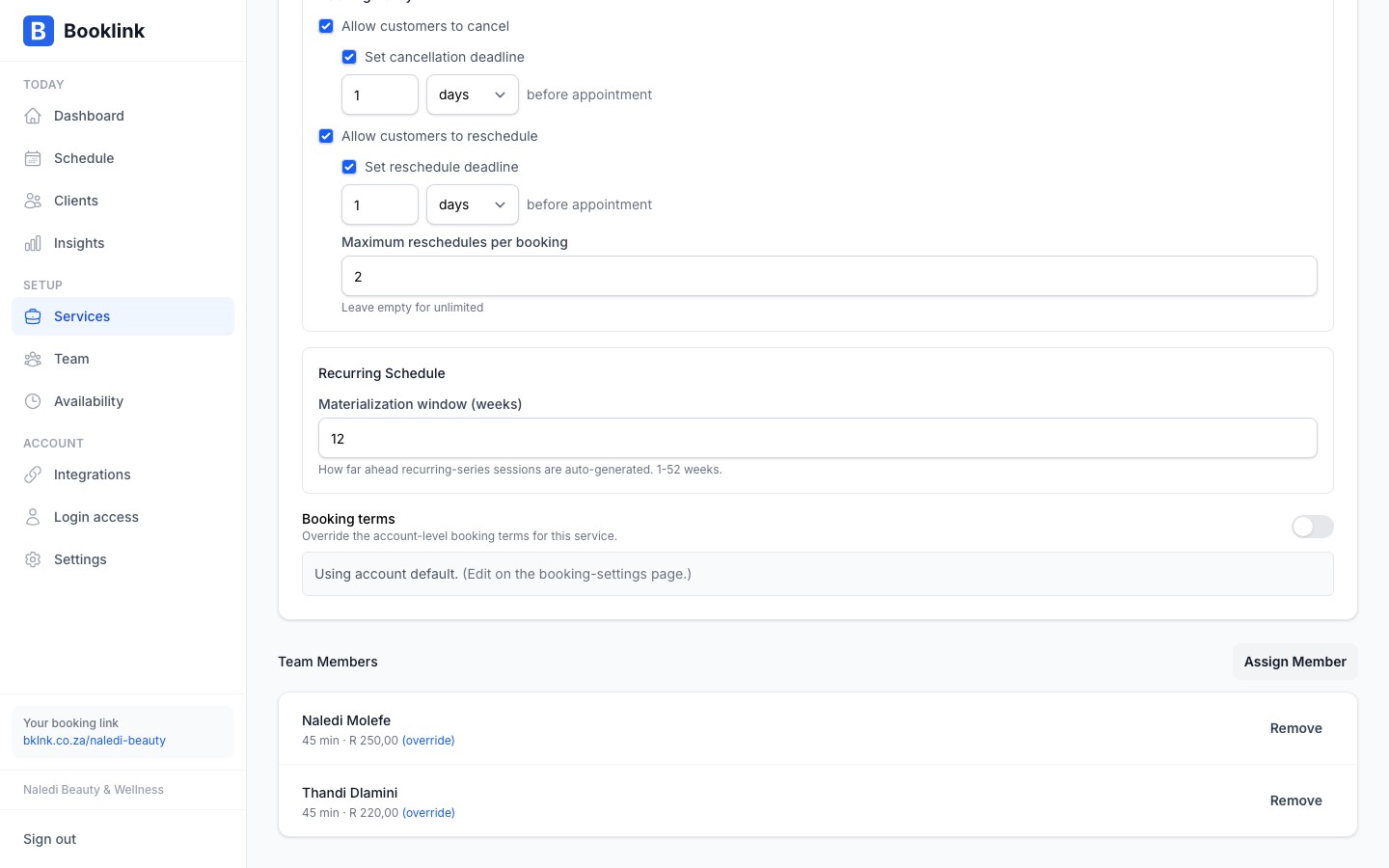
Each service can override the account terms with its own set, or opt out entirely. Open the Booking rules section of the offering page and look for the Booking terms card.
- Use account default (toggle OFF): the service inherits the account-wide terms. If no account terms are set, no acceptance gate appears for this service.
- Use custom terms (toggle ON): replace the account terms with text specific to this service. Useful when one service has different cancellation rules, special conditions, or longer policies.
- Use custom terms but leave the textarea empty: explicit opt-out for this service even though the account has terms set. No acceptance gate appears.
What the customer sees
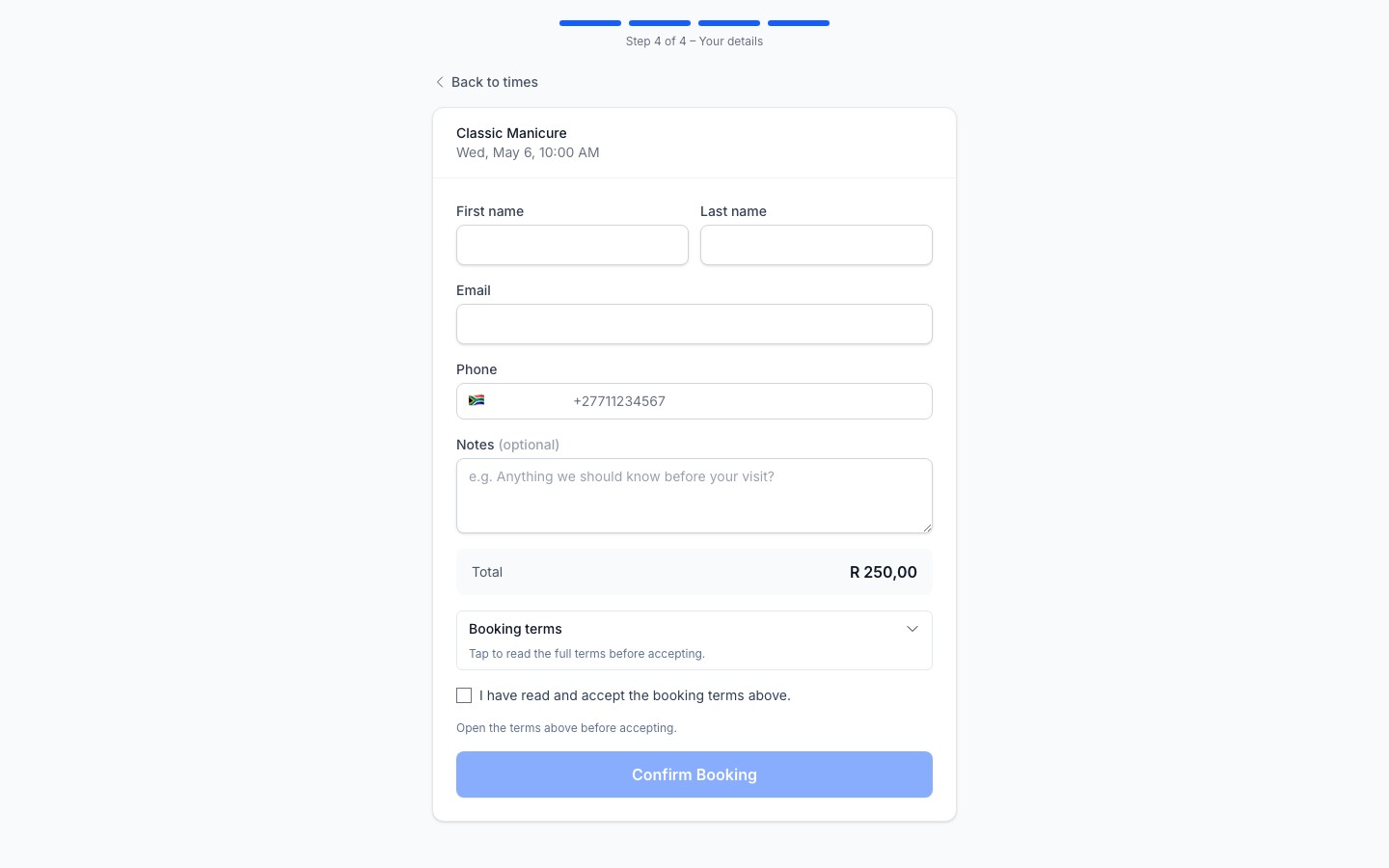
On the public booking page, the terms appear as a panel on the contact-details step (just before the customer hits Confirm). The panel starts collapsed showing the first few lines and a hint to read the full text. The acceptance checkbox is disabled until the customer expands the panel at least once. The Confirm button is disabled until the checkbox is ticked.
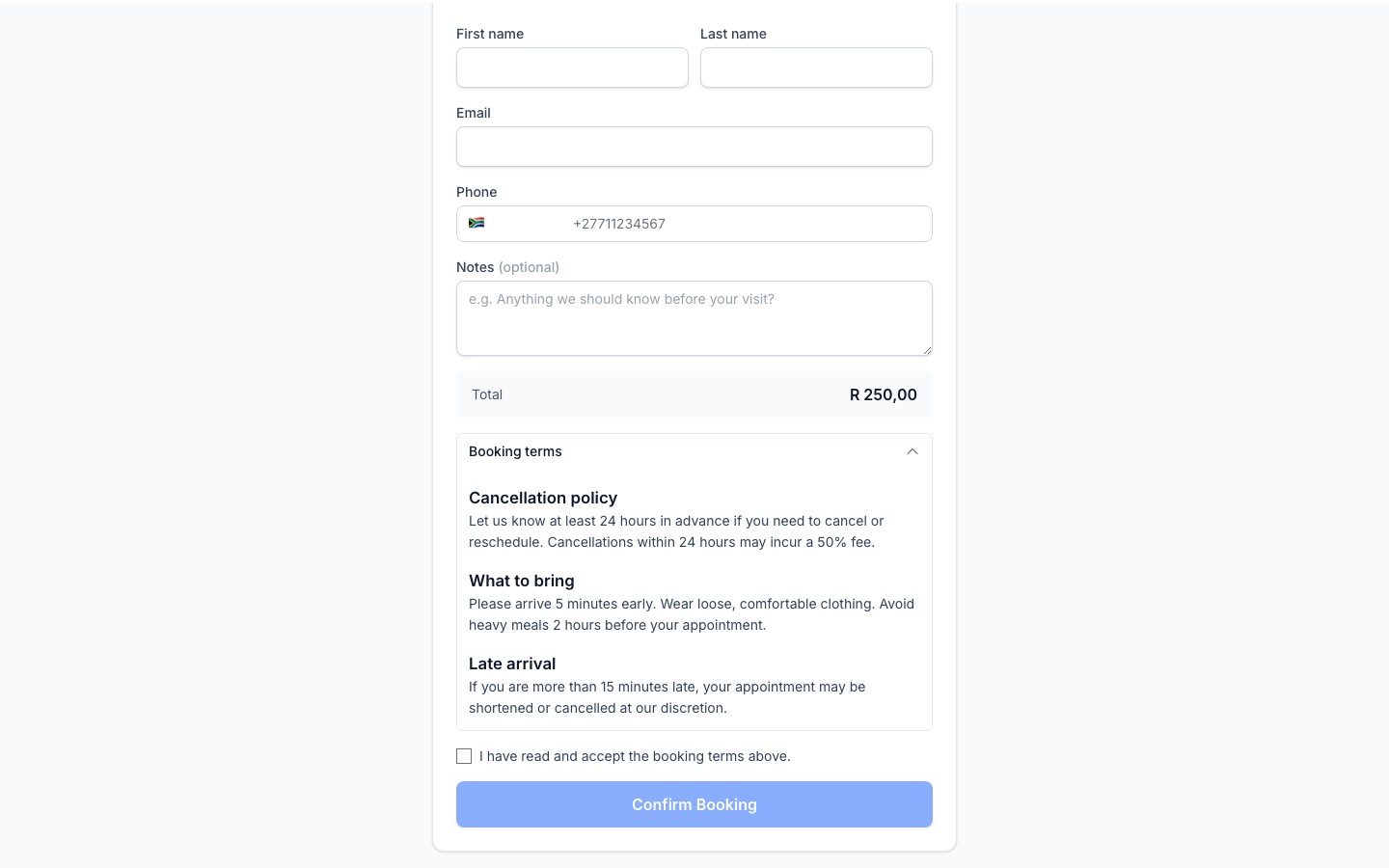
Confirmation emails
The exact text the customer accepted is included in the booking confirmation email under "Booking terms you accepted" with the acceptance timestamp. This snapshot does not change if you later edit the terms. Past bookings always reflect what was accepted at the time. For very long terms, the email links to the manage-booking page rather than embedding the full text.
What to put in your terms
Common items include cancellation and refund policy, late-arrival policy, deposit and no-show fees, contraindications for the service, and what the customer should bring or wear. Keep it concise. Customers are more likely to read short, scannable terms than a long legal document.