
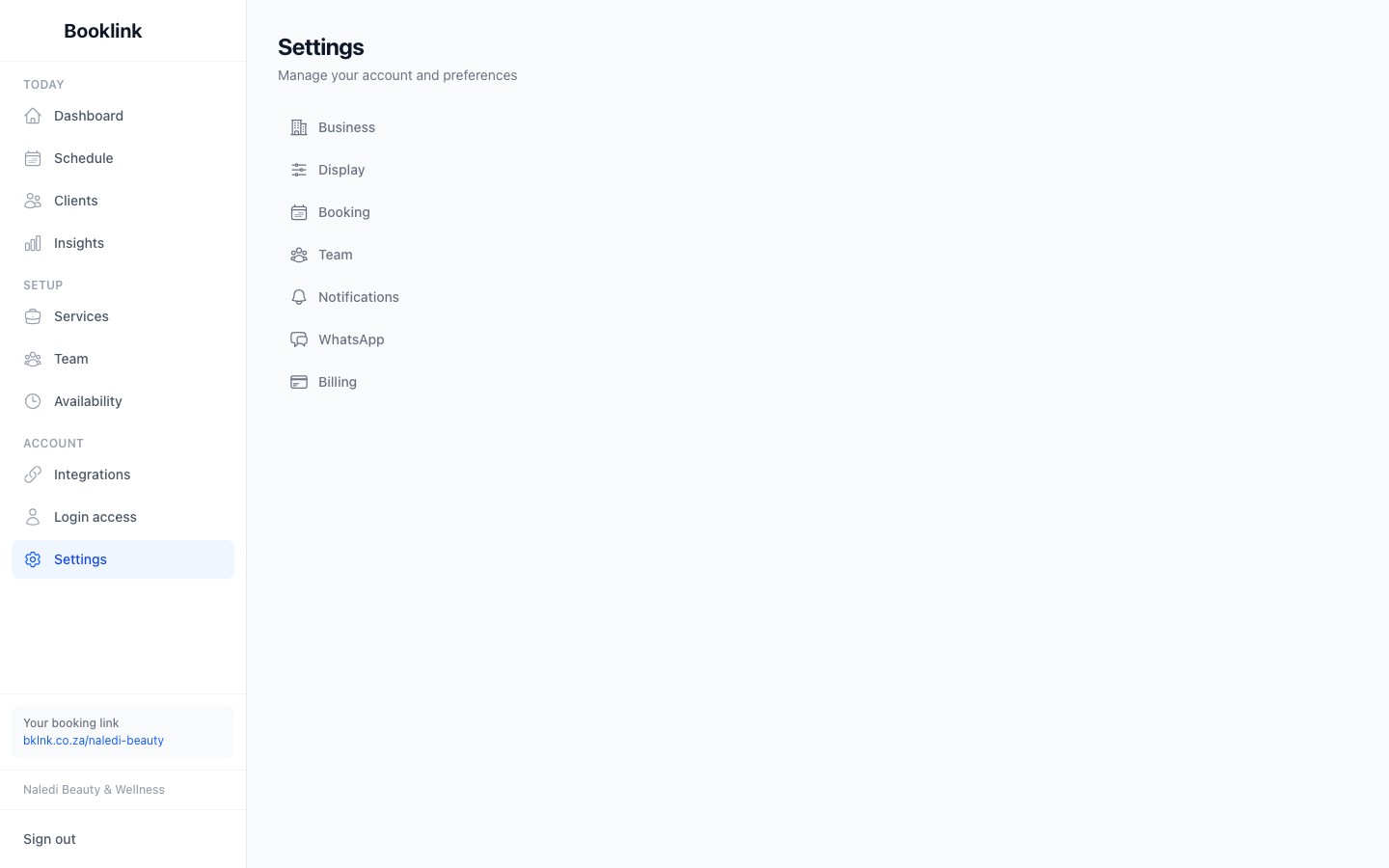
Scheduling rules control when customers can make appointments. They live in the Scheduling section of the Defaults settings (Defaults in the sidebar). Getting these right means your schedule works exactly how you expect: no last-minute bookings you are not prepared for, and no awkward back-to-back appointments with no break.
Slot start times
Slot start times determine when appointment slots begin. Choose from:
- Every 15 minutes: slots at 9:00, 9:15, 9:30, and so on
- Every 30 minutes: slots at 9:00, 9:30, 10:00
- Every hour: slots on the hour
- Based on service duration: slots follow each other exactly, so a 45-minute service offers 9:00, 9:45, 10:30
Most beauty and wellness businesses use 15 or 30 minutes.
Buffer between appointments
The buffer is a gap automatically added after each booking before the next one can start. For example, with a 15-minute buffer, if a service ends at 10:30 the next available slot starts at 10:45. Use this to allow time to prepare for the next client, clean up, or take a break between appointments. Options range from no buffer up to 1 hour.
Minimum notice
Minimum notice is the minimum amount of time between "right now" and a bookable slot. Set it to At least a number of hours or days, or No minimum to allow bookings right up to the start time.
This prevents surprise last-minute bookings when you have not had time to prepare. A setting of 1 to 4 hours is common for most service businesses.
Booking window
The booking window sets how far into the future customers can book: Up to a number of days, weeks, or months, or No limit. If set to 1 month, customers cannot book appointments more than a month from today. This is useful if you prefer to manage your schedule in shorter windows rather than accepting bookings months ahead.
Other scheduling switches
The Scheduling section also holds two optional switches:
- Allow multi-service bookings: lets customers book several services in one transaction. See Multi-service bookings.
- Use Google Calendar for day availability: shown when Google Calendar is connected. Days where your staff are fully busy in Google Calendar are greyed out in the customer's date picker, not just the individual time slots. The calendar may take slightly longer to load with this on.
Cancellations and rescheduling
The Cancellations & rescheduling section on the same page holds the account-wide rules for what clients may change after booking: whether they can cancel, whether they can reschedule, how much notice each needs, and the maximum number of reschedules per booking.
Every new offering follows these rules. An offering that needs different rules can override them from its own Booking rules section, and the page shows how many offerings currently do. See Booking policies for the details.
Two switches below the rules control cancellation reasons: whether anyone cancelling must give a reason, and whether that reason is repeated back to the client in their cancellation email.
Start with sensible defaults
If you are not sure what to set, try: 30-minute slot start times, a 15-minute buffer, 2 hours minimum notice, and a 2-month booking window. You can adjust these at any time and changes take effect immediately for new bookings.