
Group services run as scheduled sessions that customers book into (think yoga classes, group workshops, or coached fitness sessions). You can schedule a one-off session straight from the services list, and let Booklink auto-generate recurring sessions for series-based services.
Schedule a session from the services list
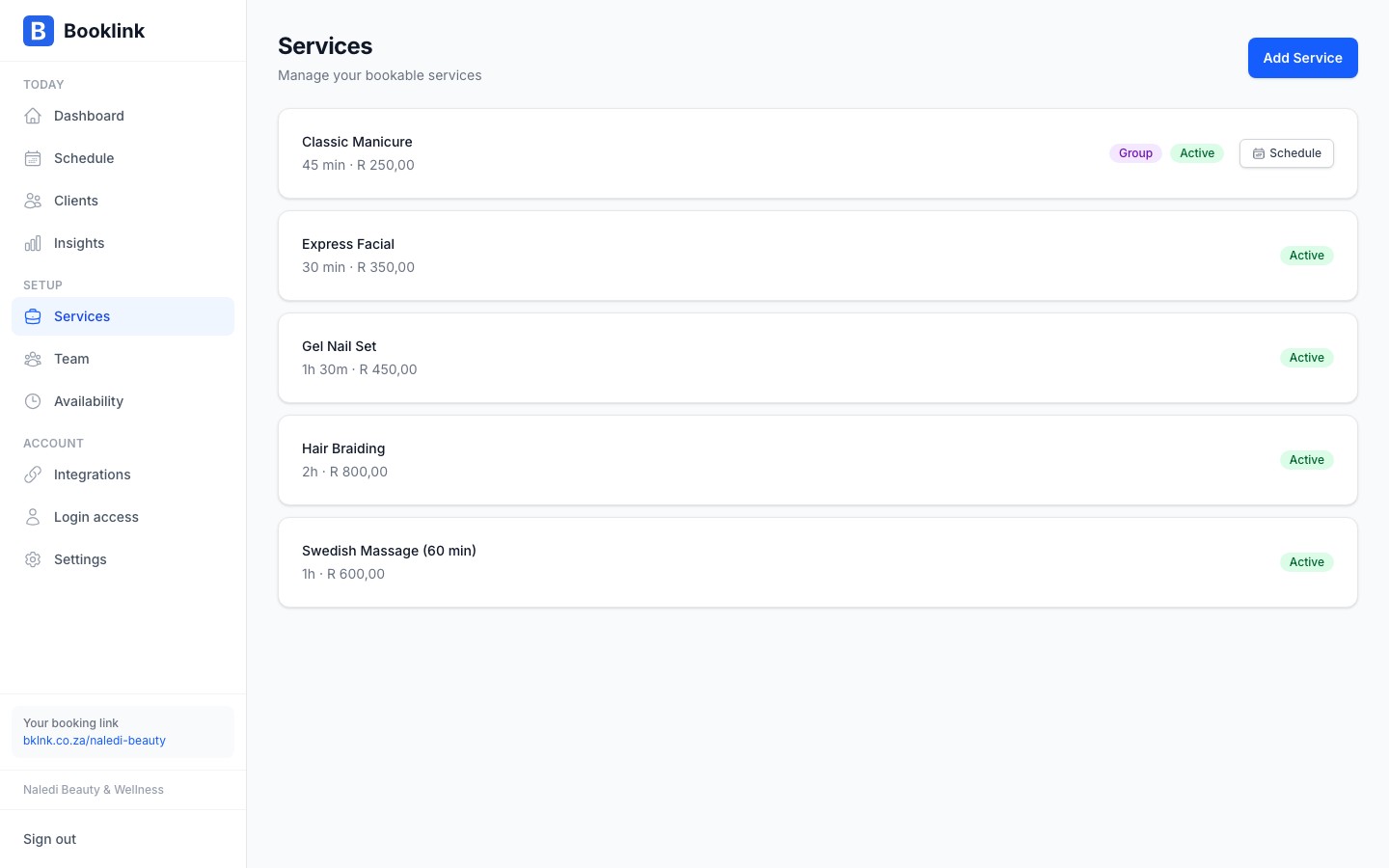
Each active group service has a Schedule button on its row in the services list. Click it to open the quick-schedule dialog and add a single session without leaving the list.
- 1
Click Schedule
Click the Schedule button on a group-service row. The quick-schedule dialog opens. - 2
Review the pre-filled form
If the service already has prior sessions, the dialog pre-fills with the same instructor, time, and capacity as the most recent session, with the date bumped forward by 7 days. The header strip tells you what session it copied from. Adjust any field that needs to change.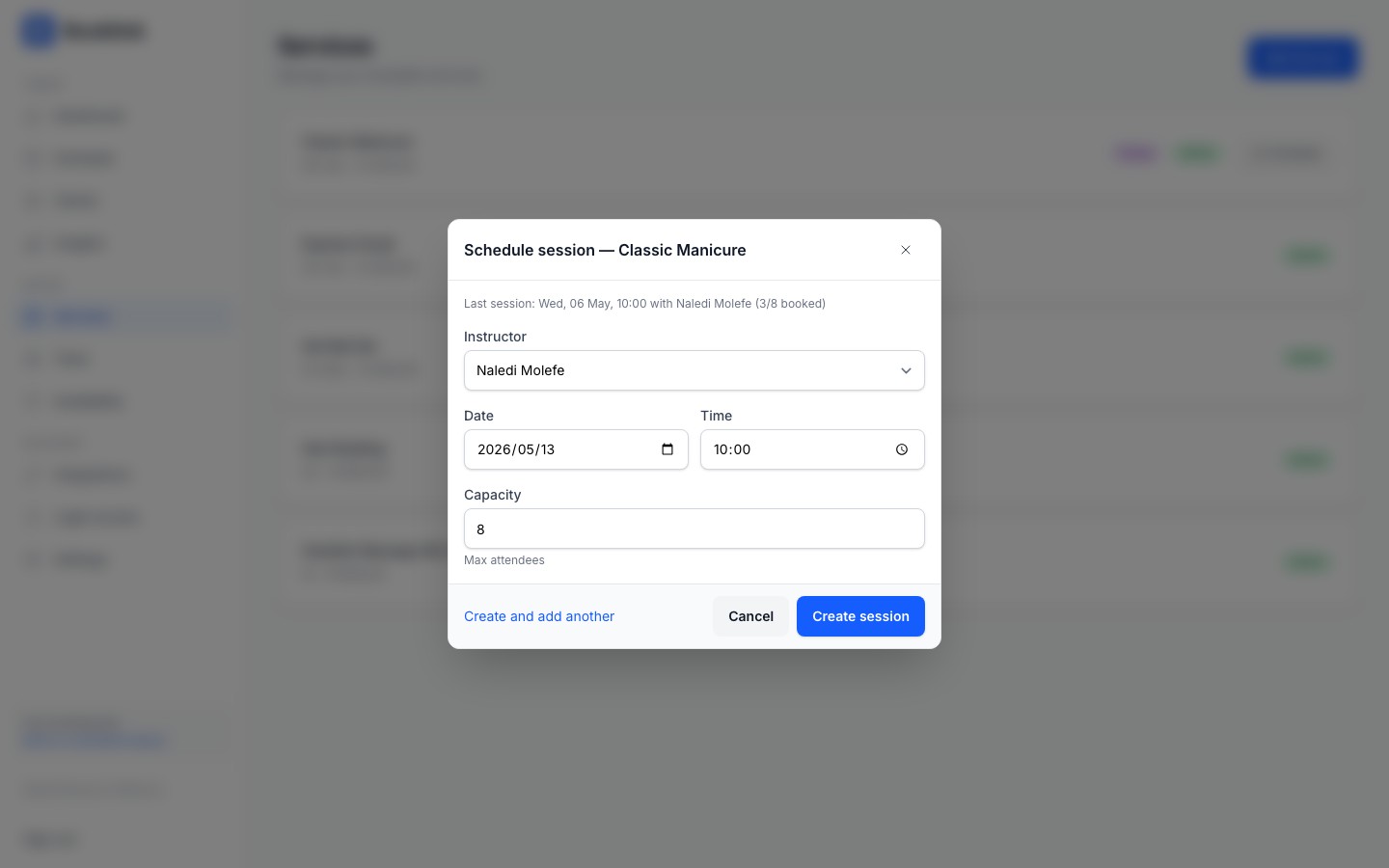
- 3
Create the session
Click Create session to save and close. To schedule several sessions back-to-back, click Create and add another instead. Booklink saves the current session and reopens the dialog with the date bumped forward by another 7 days.
Errors you may see
The dialog blocks invalid input before the request reaches the server. Common errors:
- "Pick a date and time in the future." The chosen date/time is in the past.
- "Capacity must be at least 1." The capacity field is zero or negative.
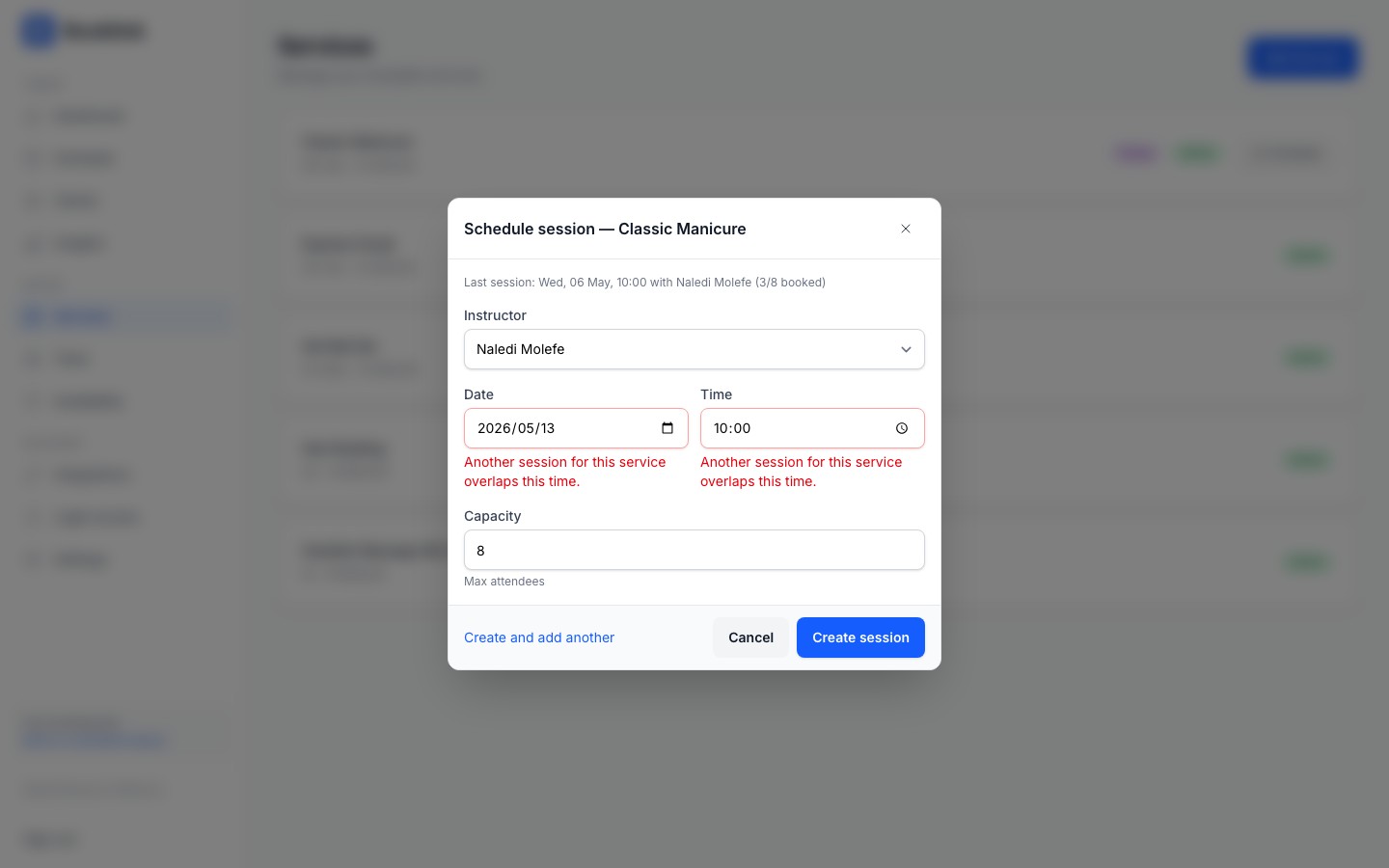
- "Another session for this service overlaps this time." There is already a session for the same service that overlaps the chosen slot. Pick a different time.
Assign an instructor first
If the service has no team members assigned, the dialog shows a blocking message instead of the form. Open the service and assign at least one team member to that service before scheduling sessions.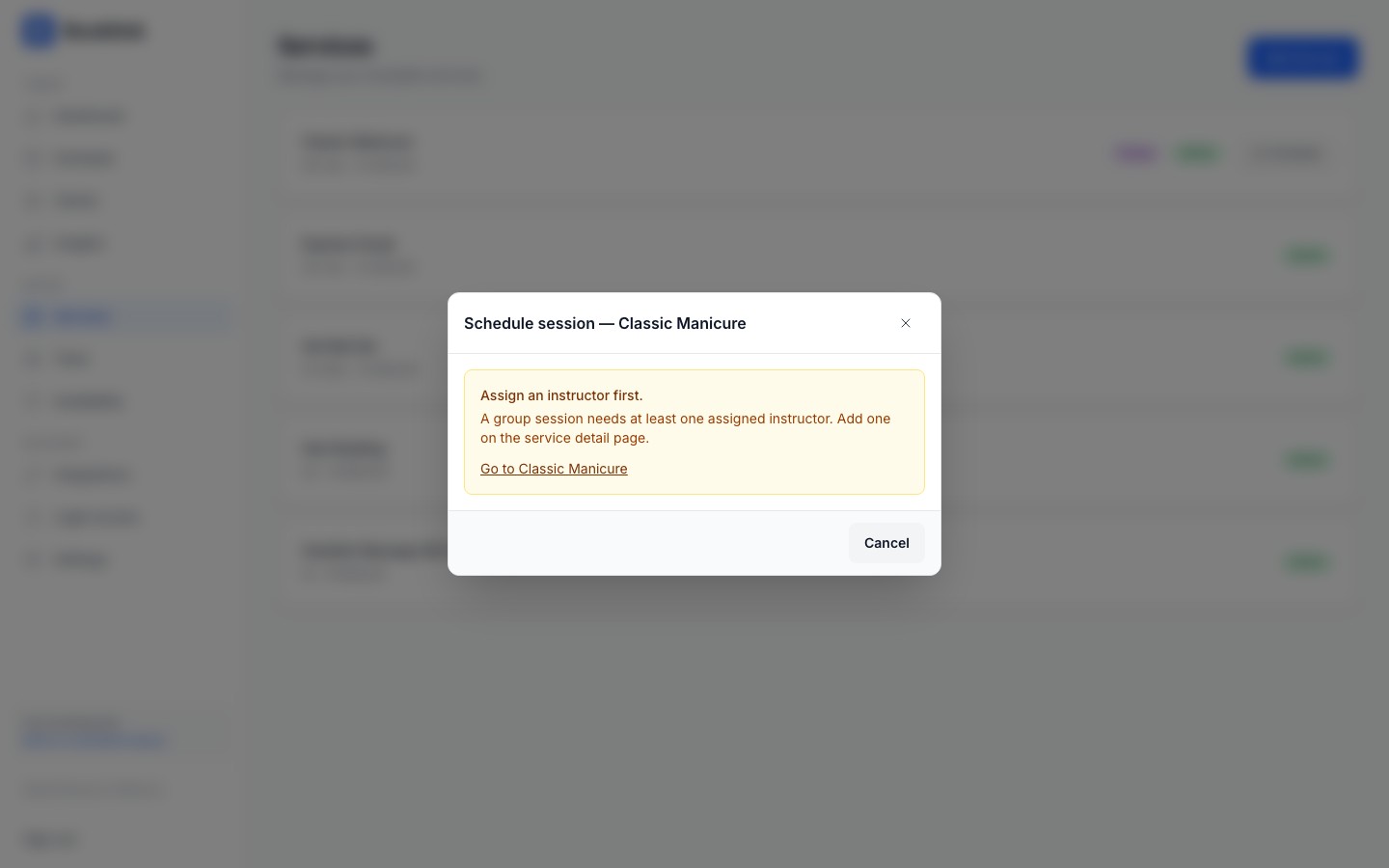
Materialization window (recurring sessions)
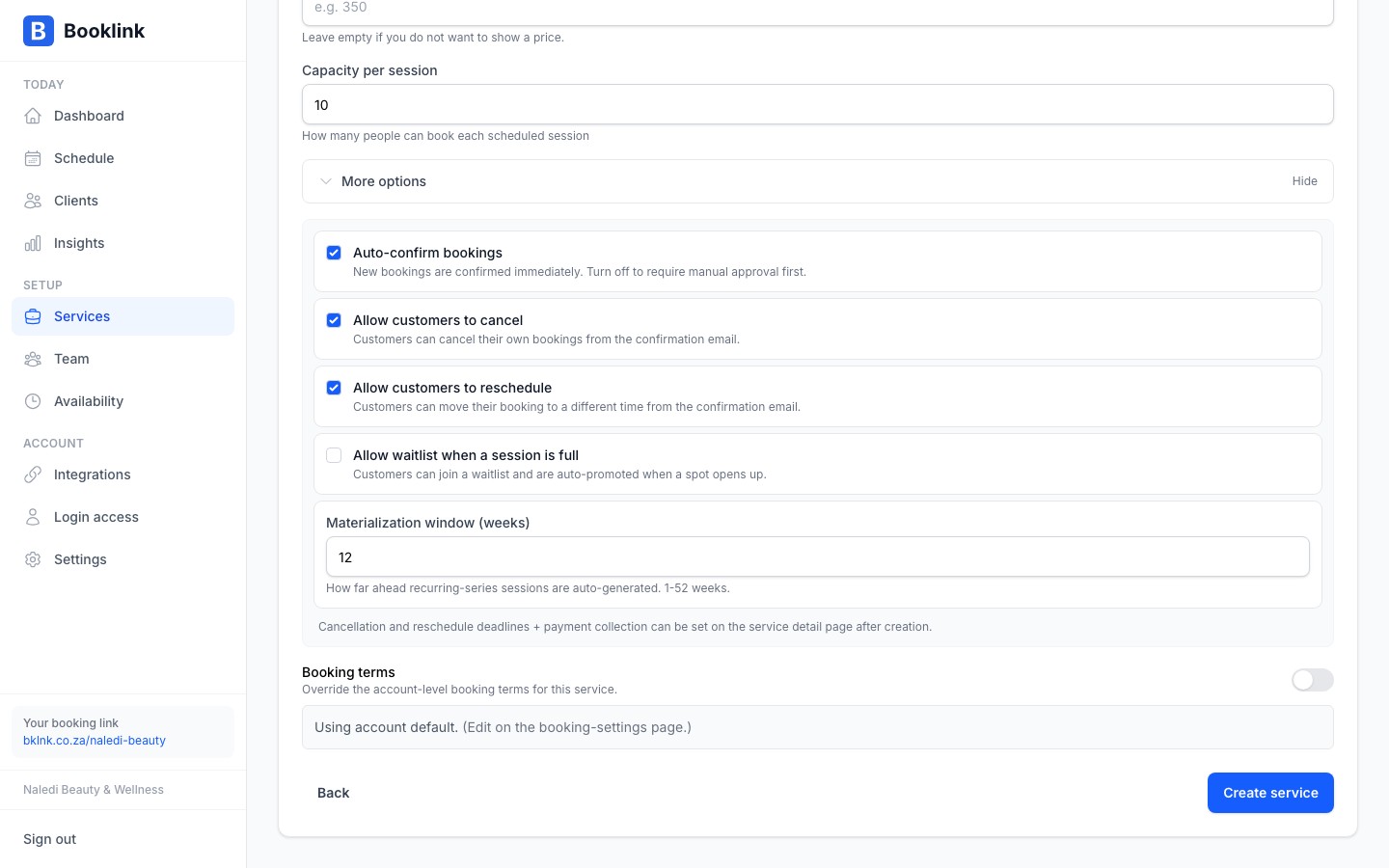
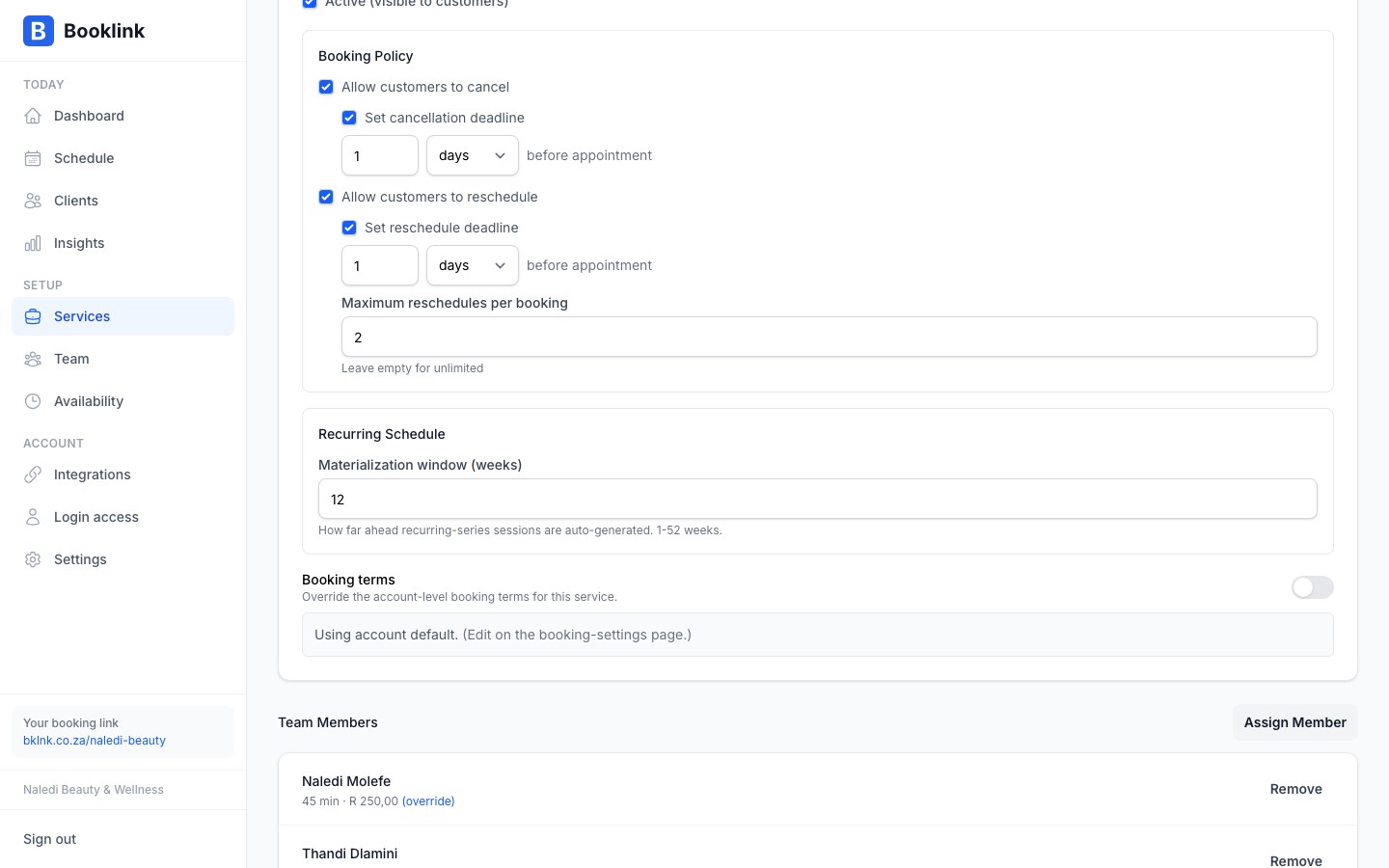
For services with a recurring schedule, Booklink generates the actual bookable session instances ahead of time. The Materialization window setting controls how far into the future those instances exist. By default Booklink keeps the next 12 weeks of sessions ready.
You can adjust the window between 1 and 52 weeks on the service create form (under More options) and on the service detail page under Recurring Schedule.
Choosing a window
A longer window means customers can book further ahead. This is useful if you have a stable schedule and want to fill the calendar early. A shorter window means less to clean up if you change the recurring rules later, since fewer instances exist when you make the change.Already-generated sessions are kept
Reducing the materialization window does not delete sessions that have already been created. It only stops new ones from being auto-generated past the new window. Use the bookings page to cancel any session you no longer want to run.If a client tries to book the same class twice
Booklink stops a client booking the same session twice. They see a message that they're already booked, with a button to email themselves their booking link. Sessions they have booked on their device show a Booked badge on your booking page, with a link to manage the booking.
Adding a client to a session they're already in from your dashboard asks you to confirm first, so you can still add a second booking on purpose.