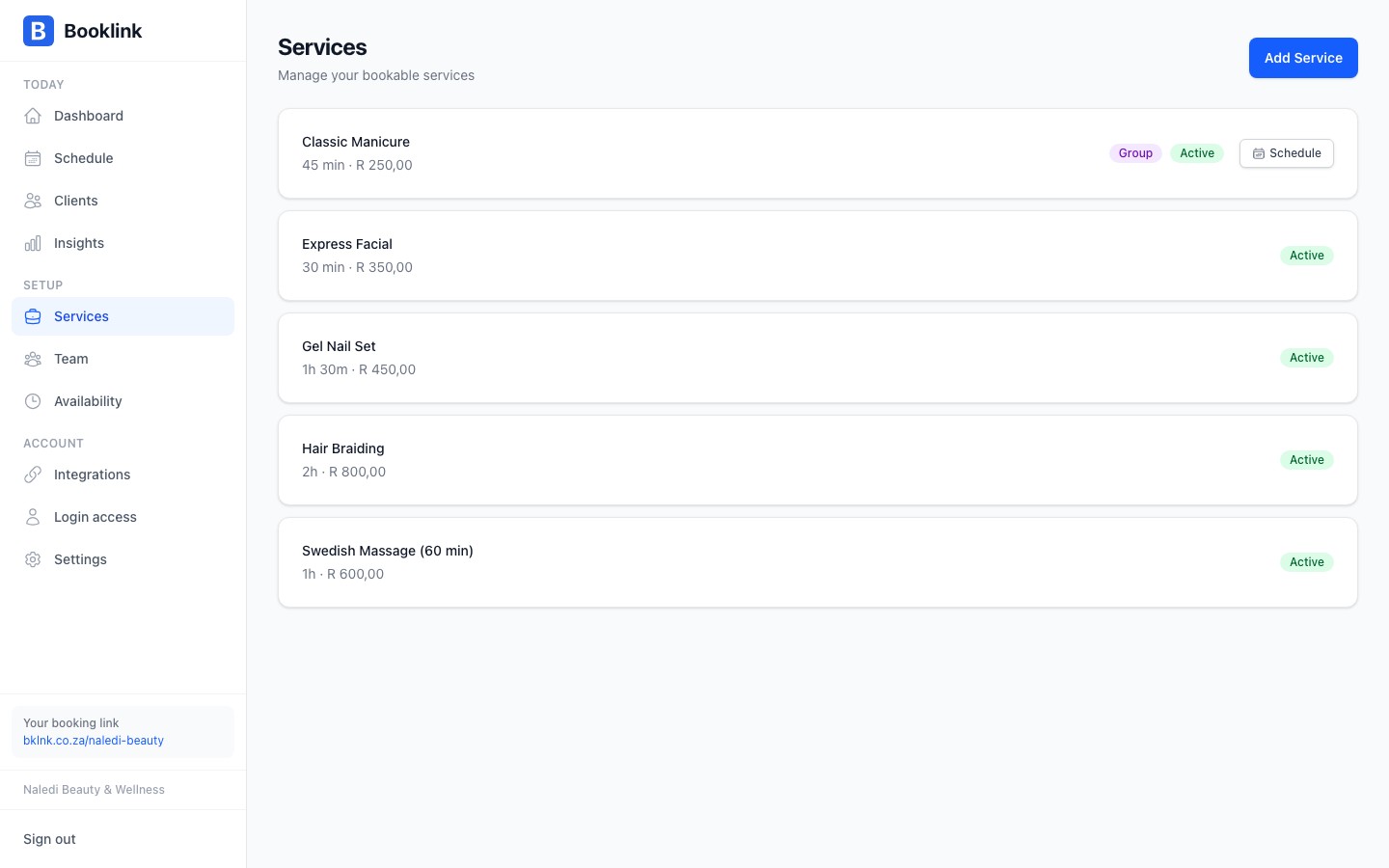
The Offerings page (under Manage in the sidebar) is where you manage everything clients can book. You can see all your services at a glance, drag them into the order customers should see, filter and search the list, copy a direct booking link for any service, and click into any service to edit its details.
The services list
Each row in the list shows:
- Service name and its category badge, if assigned
- Type: 1:1, Scheduled, or Group
- Duration and, for group services, the capacity
- Price in South African Rand
- A copy button that copies the service's direct booking link
- A Schedule button on scheduled and group services for quickly adding a session
Click any row to open the service's detail page, where you can edit all its settings.
Reordering services
Drag any row up or down using the grip handle on the left. This sets the order customers see services on your public booking page, so put your most popular offerings at the top. The new order saves automatically.
Filtering and searching
Once your list grows, two controls appear above it:
- An Active / Inactive / All filter (shown when you have inactive services). The list shows active services by default.
- A search box (shown when you have more than three services) for finding a service by name.
Active and inactive services
Each service has an Active switch at the top of its offering page. When a service is active, it appears on your public booking page and clients can book it. When it is inactive, it is hidden from your booking page, but it is not deleted, so you can reactivate it at any time.
Use inactive services when you want to temporarily stop taking bookings for a particular offering, for example if you're on leave and won't be offering that service for a few weeks, or if a service is seasonal.
Deactivate instead of delete
If you stop offering a service, deactivate it rather than deleting it. This preserves the historical booking records associated with that service, which is useful for reporting and reference.Plan limits
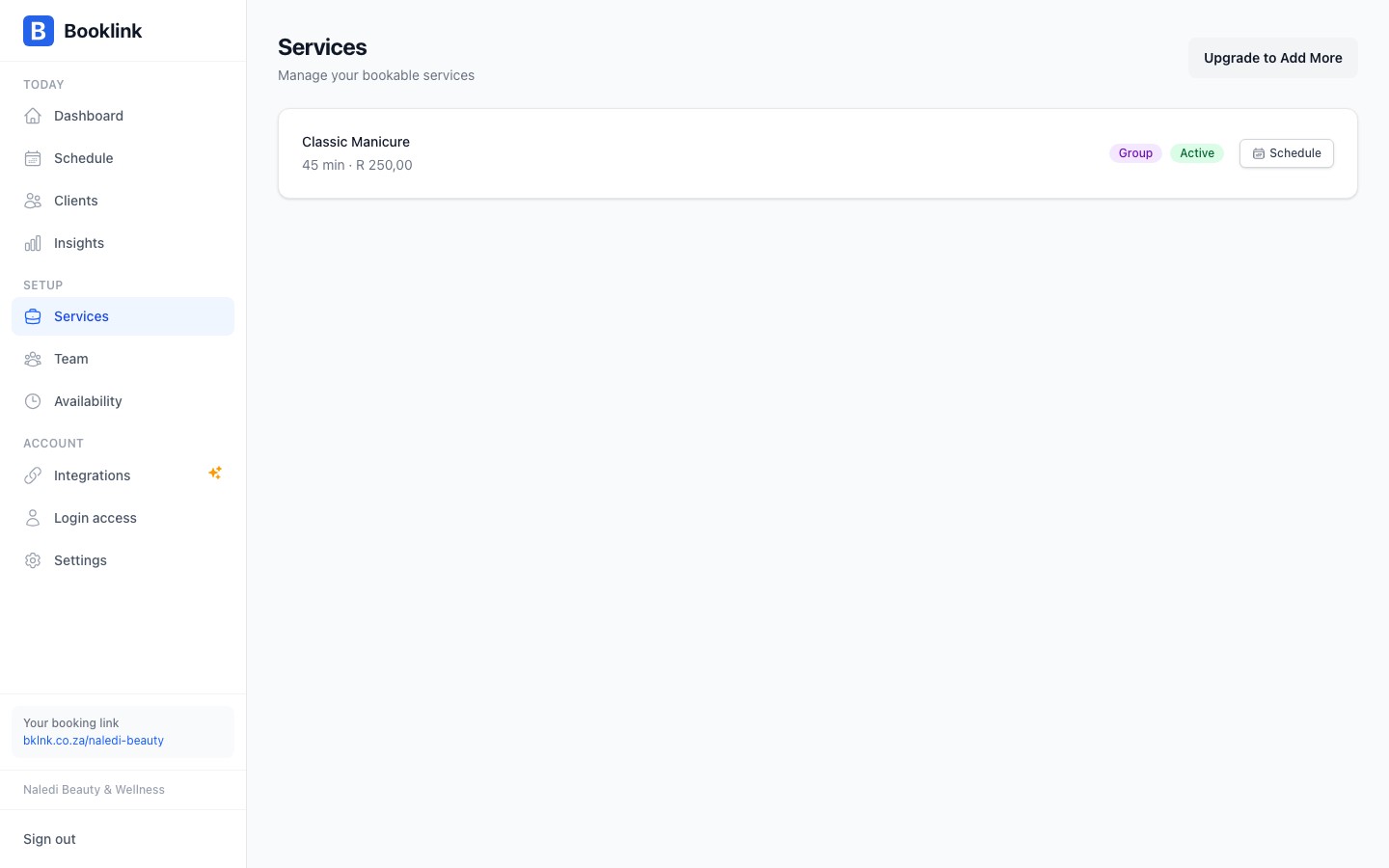
The free plan allows one service. If you reach that limit, the Add Service button is replaced with an upgrade prompt. Upgrade to Pro to unlock unlimited services.