
Group sessions inherit their name from the service they belong to, but you can give any individual session its own name and description. This is useful when the same service runs in different flavours, like a "Beginners" and an "Advanced" yoga class. You can also adjust a session's duration after it has been created, and Booklink keeps booked customers in the loop.
Naming a session
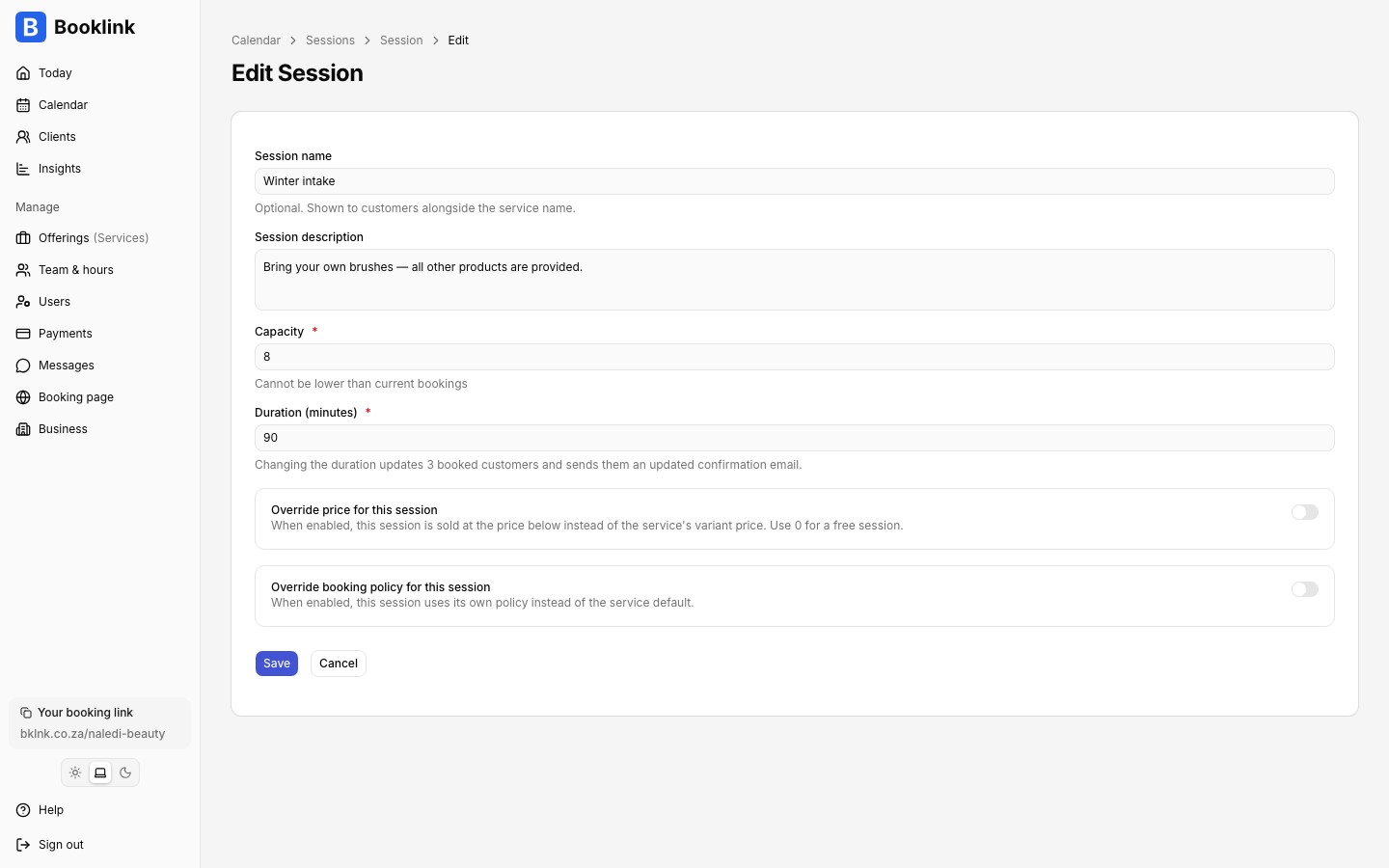
Open a session from the Calendar page and click Edit. The edit form has two optional fields:
- Session name: shown to customers alongside the service name, both on your booking page and in their emails.
- Session description: a short note about what makes this session different, shown when customers pick a session.
Leave both blank and the session simply uses the service's name and description.
Changing a session's duration
The same edit form lets you change the session's duration in minutes. This is handy when one particular class runs longer than usual, or when you scheduled a session with the wrong length.
Booked customers are notified
If the session already has booked customers, changing the duration updates their bookings and sends each of them an updated confirmation email with the new end time. The form tells you how many customers will be notified before you save.Setting the duration when scheduling
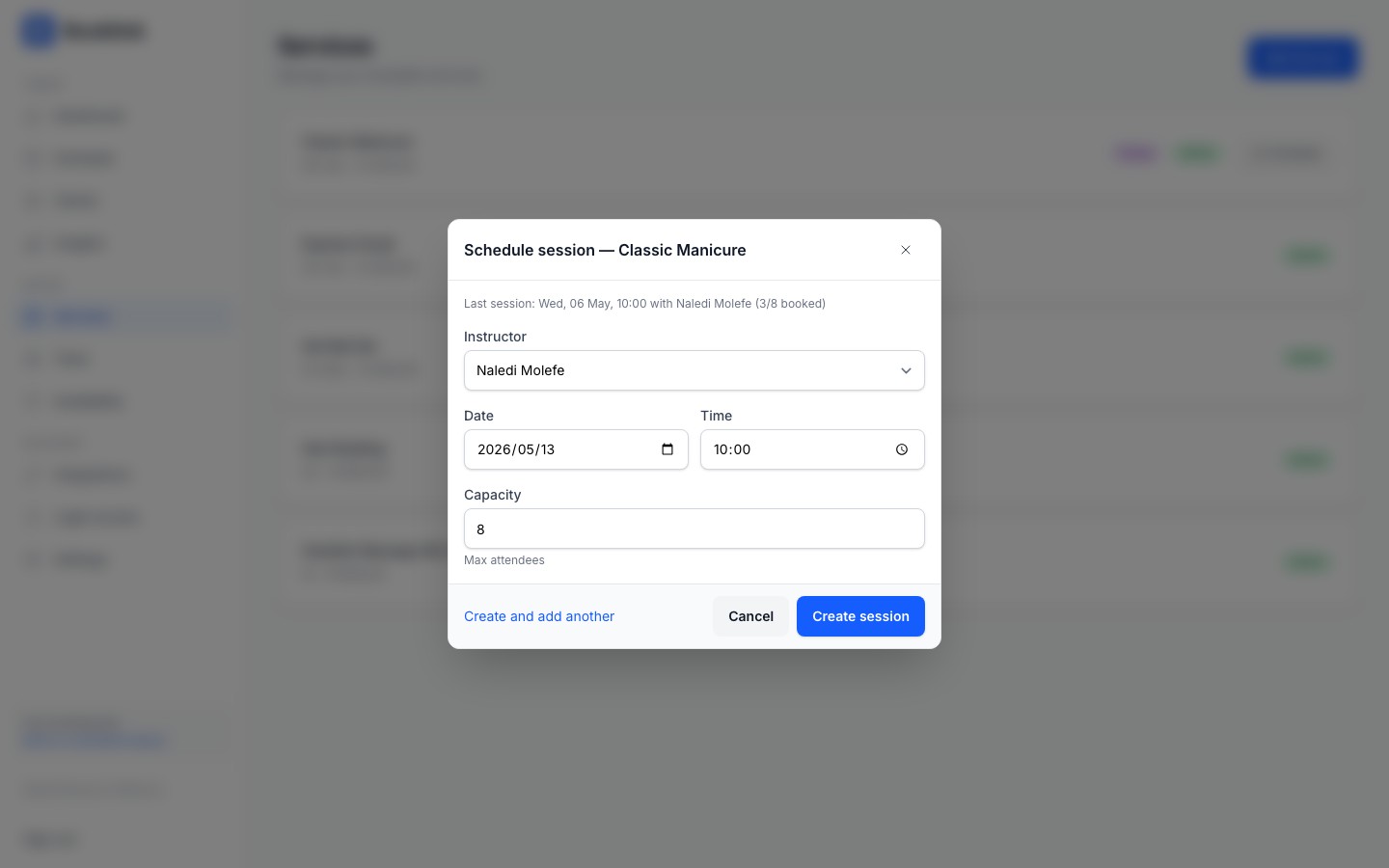
The quick-schedule dialog on the Offerings page also has a Duration (minutes) field, so you can give a one-off session a non-standard length at creation time instead of editing it afterwards.
Prefixed labels
When a session has its own name, customers see it together with the service name, for example "Yoga Class: Sunrise Flow". Keep session names short so the combined label stays readable.