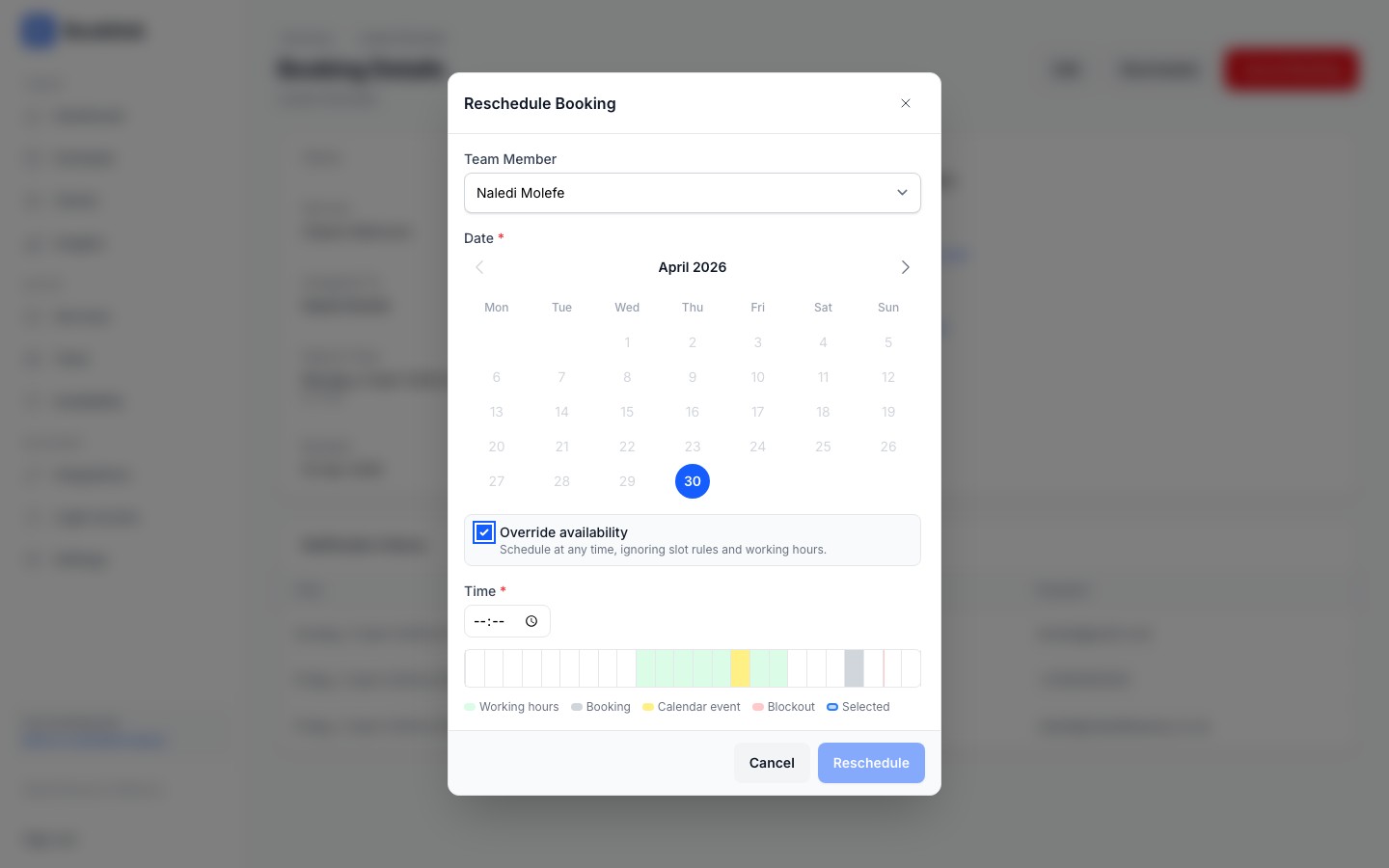
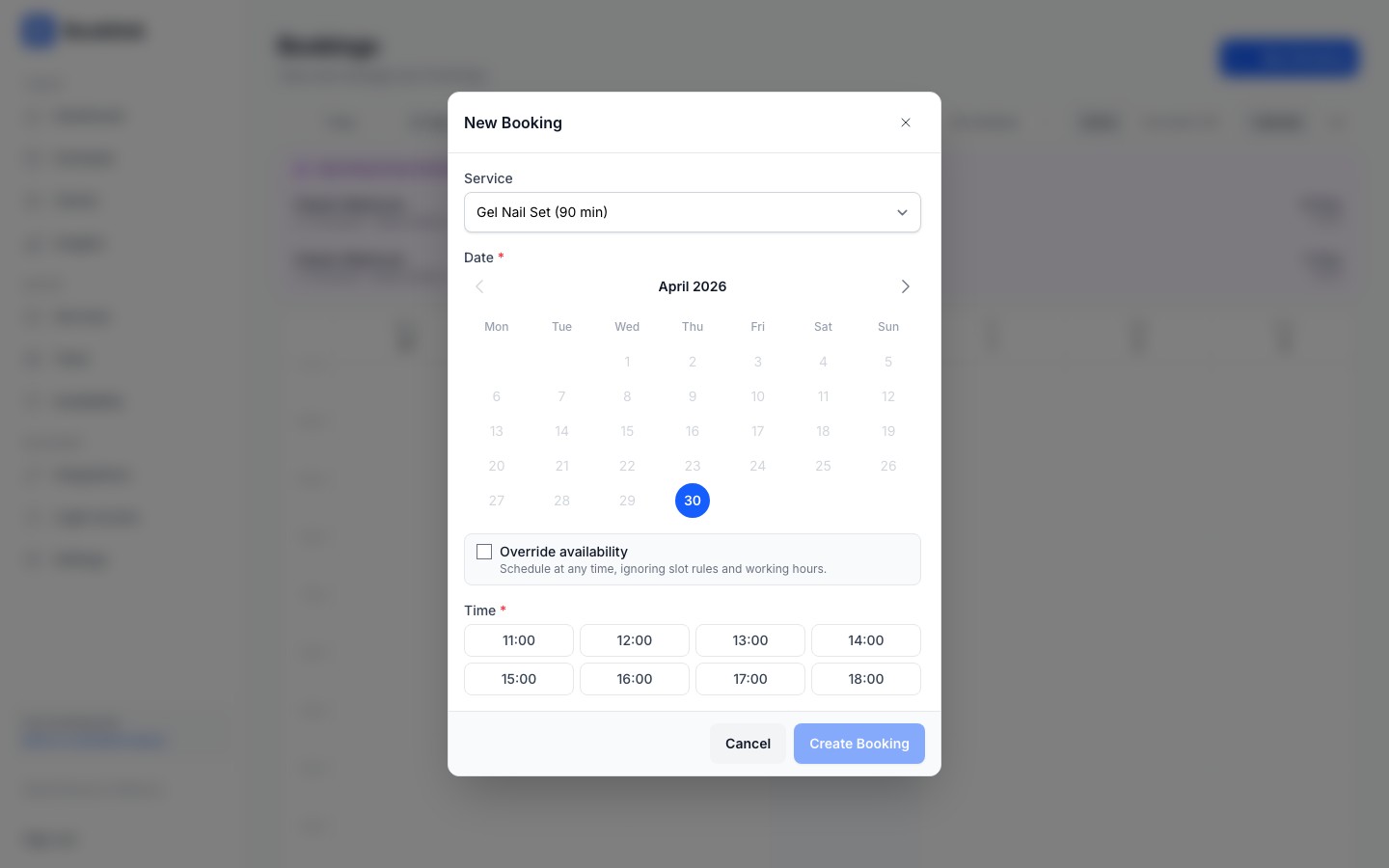
Most of the time, the New Booking and Reschedule flows show only the times that fit your availability rules and your slot start times setting. The Override toggle lets you put a booking at any minute of the day when you need to, while still protecting against double-booking the same team member.
When to use override
Use Override availability when:
- A regular asks for a session under your usual minimum notice.
- You agree to fit someone in just outside working hours.
- You are migrating a booking from another system that does not match your slot start times.
- You want to commit to a date past your maximum advance window.
Turning override on
Pick the service, team member, and date as usual. The Override availability toggle appears above the time picker. Switch it on and the time grid is replaced by a free time input and a day timeline.
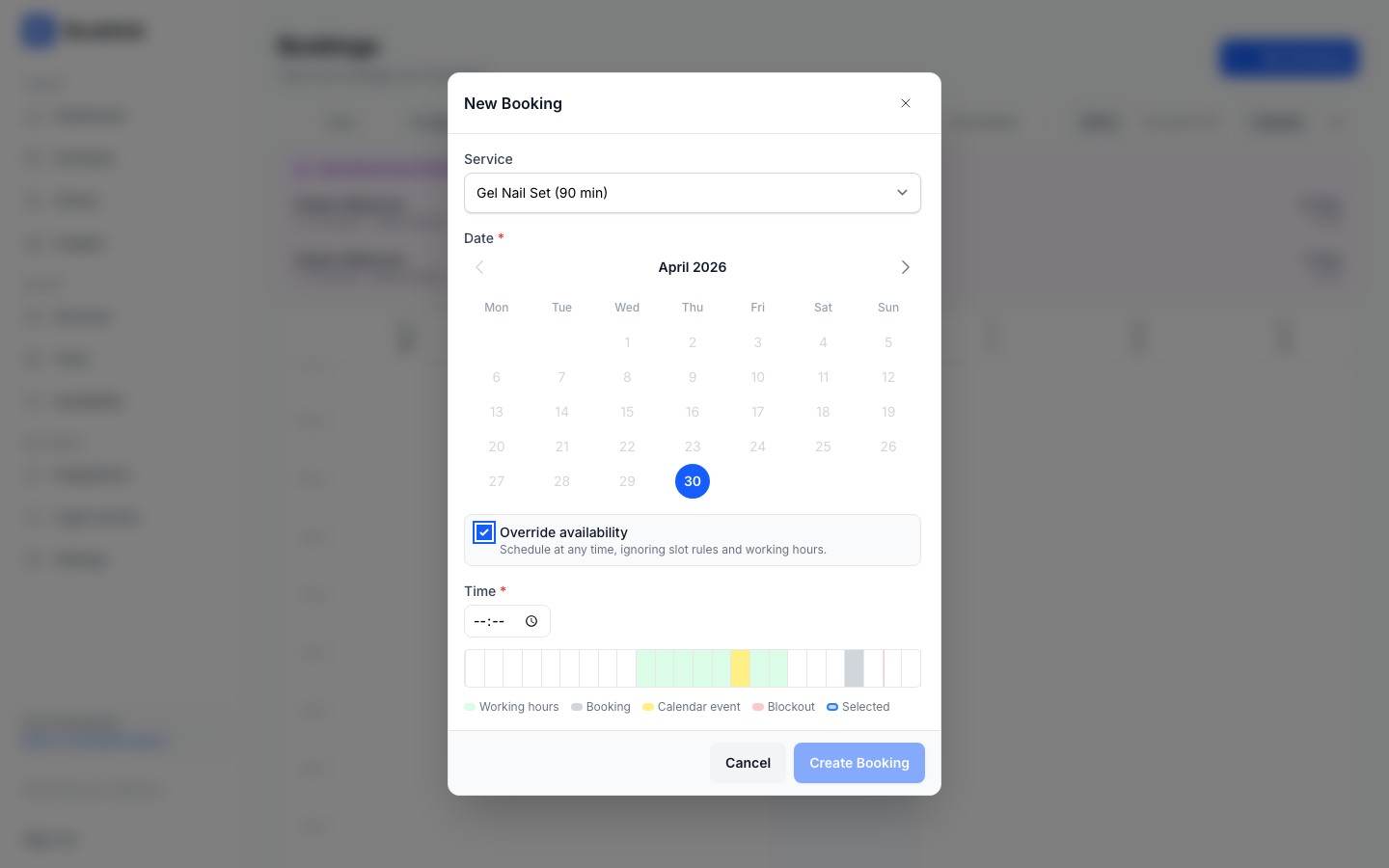
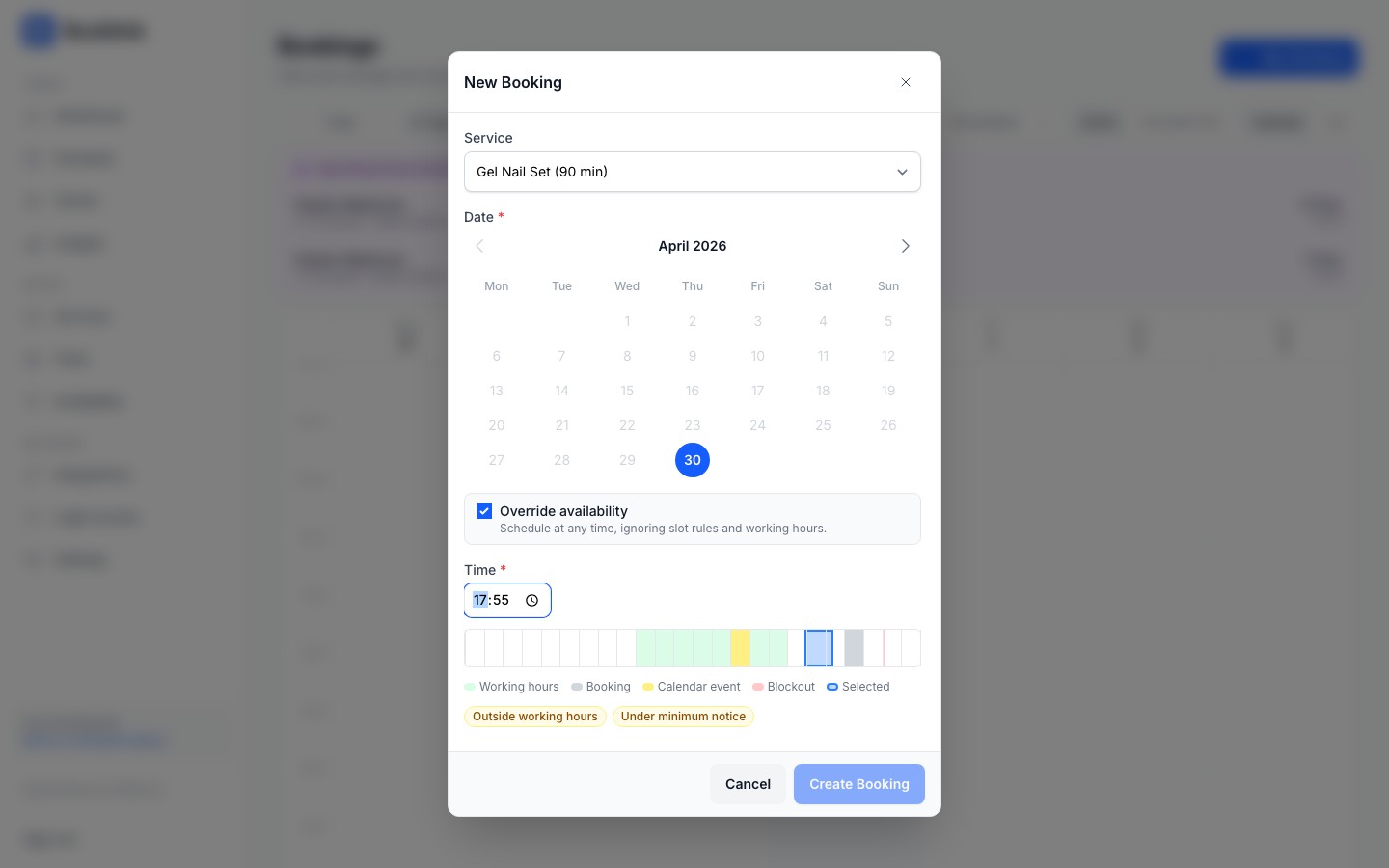
Type any time in the input. The blue marker on the timeline shows where the booking will sit and how long it runs.
Warnings
Below the input, a row of yellow tags lists every rule the chosen time bypasses. Common ones include "Outside working hours", "In blockout", "Under minimum notice", and "Within buffer of another booking". The booking still goes through, but you can see exactly what you are bypassing.
Tip
Override never lets you double-book a team member. If the chosen time overlaps another confirmed or pending booking on the same team member, the booking is rejected.Rescheduling with override
The same toggle is available in the Reschedule Booking modal. Use it when you need to move an existing booking to a time the rules would normally block.