
By default, only the account owner can log in to Booklink. If you want a team member to see their own bookings and manage their own schedule, you can create a login for them. Each team member with login access uses their own email address to receive a one-time password when they sign in, and you control exactly what they can see and do through permissions.
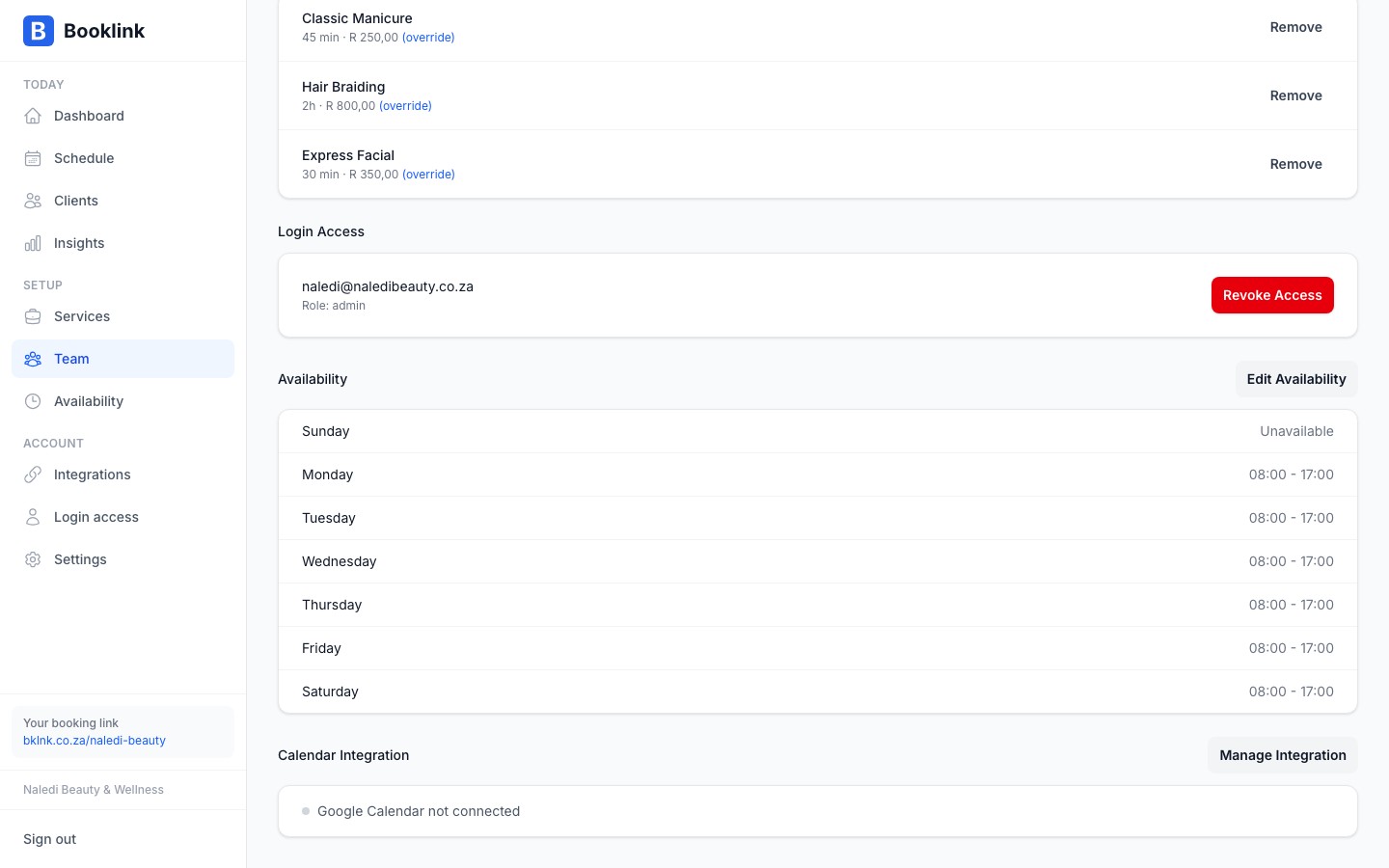
Creating a login for a team member
How to grant login access
- 1
Open the team member's Login page
Navigate to Team & hours, open the team member, and go to their Login section.
- 2
Enter their email address
Enter the team member's email address. This is the address they'll use to receive their one-time password when logging in. It is separate from the notification email and should be an inbox they have secure access to.
- 3
Review the permissions
The login starts from the Staff template: they can see their own calendar and their own finances, and nothing else. Adjust any area before granting access if they need more (or less). See Team permissions for what each area and level means.
- 4
Grant access
Click Grant access. The team member can now log in at app.booklink.co.za using their email address.
What can team members do when logged in?
With the default Staff permissions, a logged-in team member can:
- See their own Today page and calendar
- View their own upcoming bookings and revenue
They cannot see other team members' bookings, clients, services, settings, or billing. If someone needs broader access, for example a receptionist who manages the whole calendar, edit their permissions on the Users page or start from the Front desk template.
Logins are managed under Users
Creating a login here creates a user that is linked to the team member. You can fine-tune their permissions, or add users who are not team members at all (like a bookkeeper), on the Users page. New users added there can optionally be sent a welcome email with a login link.Removing login access
If a team member leaves your business, deactivate their team member record and click Remove login access on their Login section. This prevents them from signing in while preserving their historical booking records.