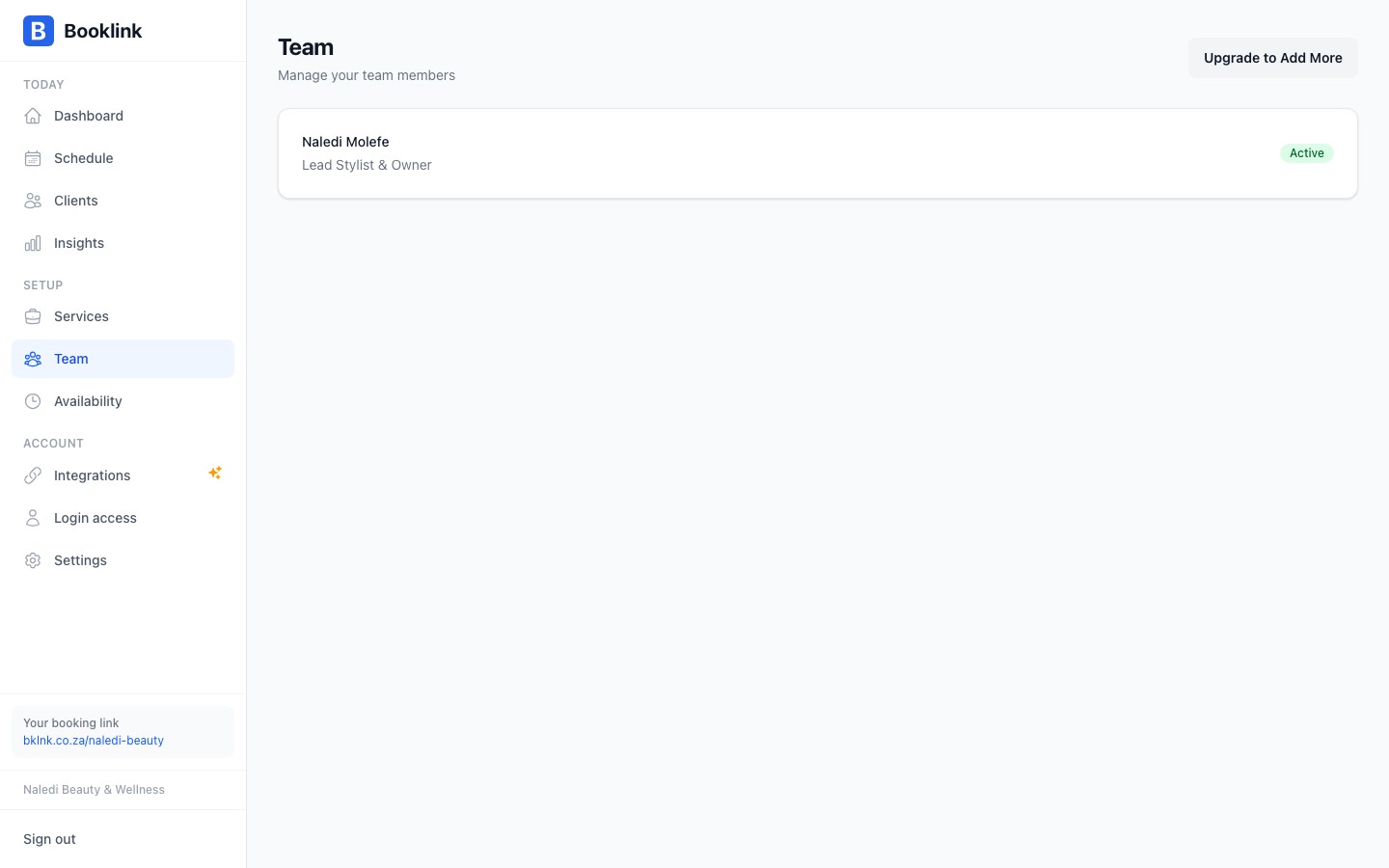
The Team Members page lets you manage all the people in your business who provide services to clients. Each team member has their own profile, availability schedule, and set of assigned services. Clients can choose which team member they'd like to book with when making an appointment.
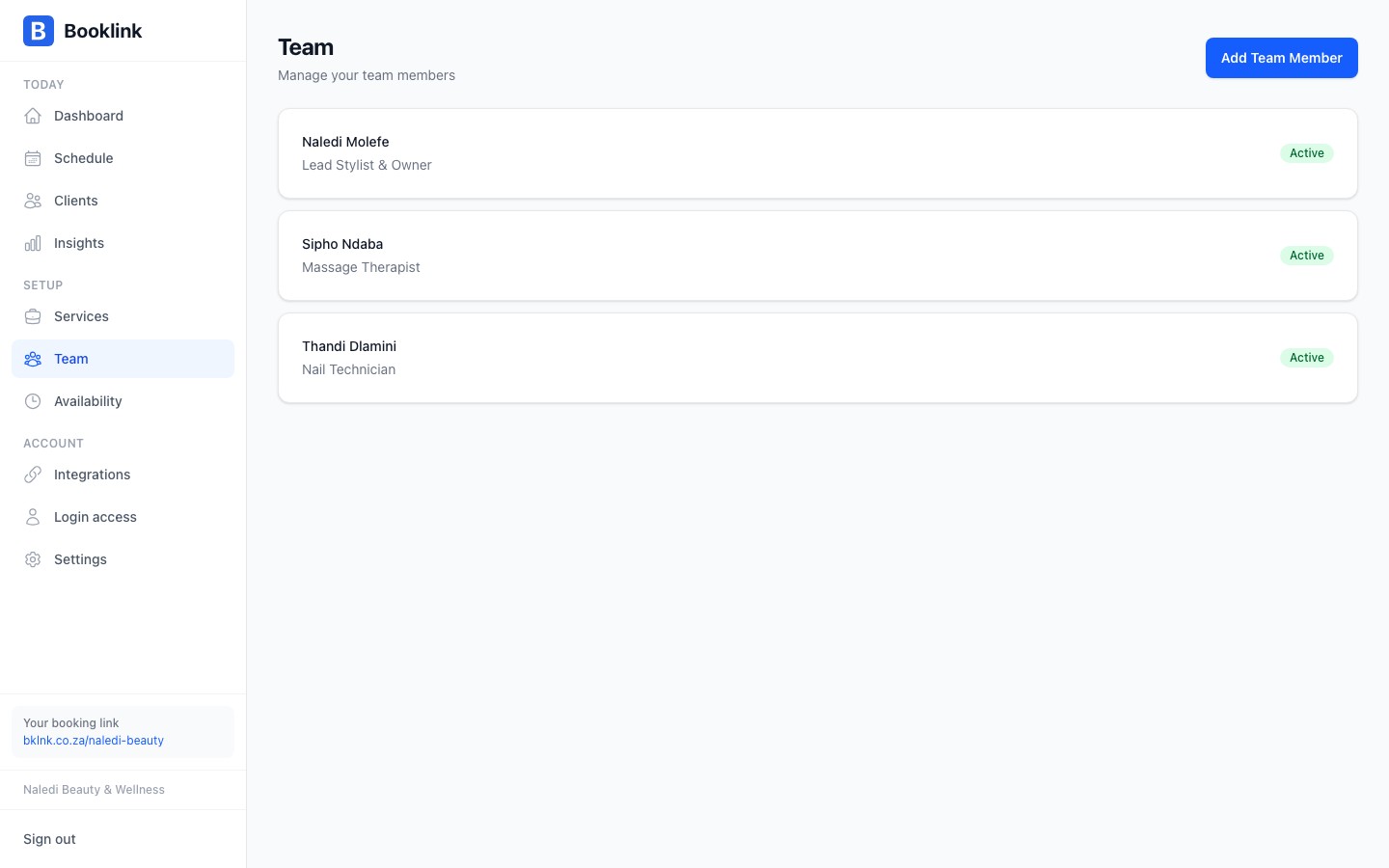
The team list
Each team member card shows:
- Name and title: their display name and job title (shown to clients)
- Status badge: whether this team member is currently active and bookable
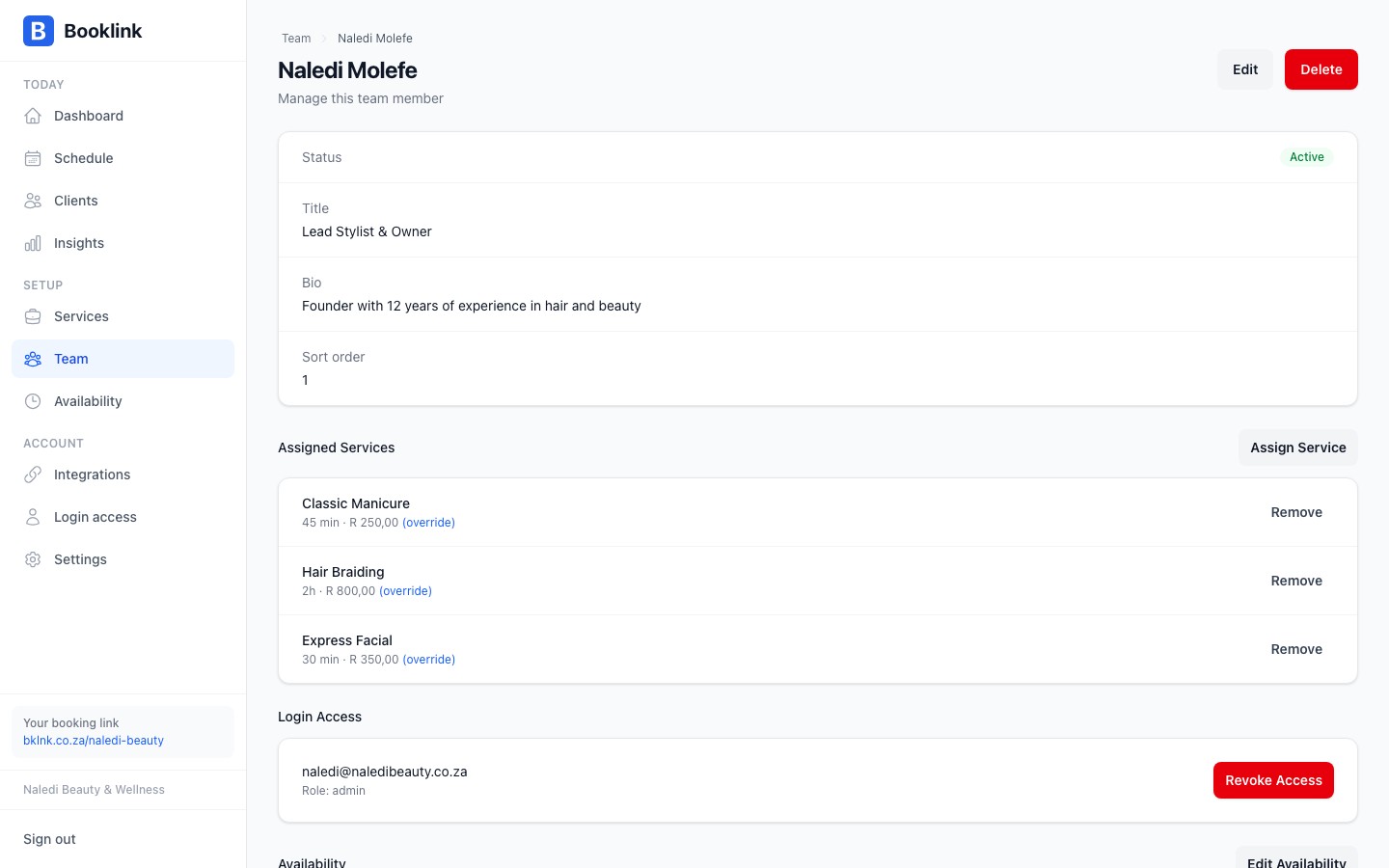
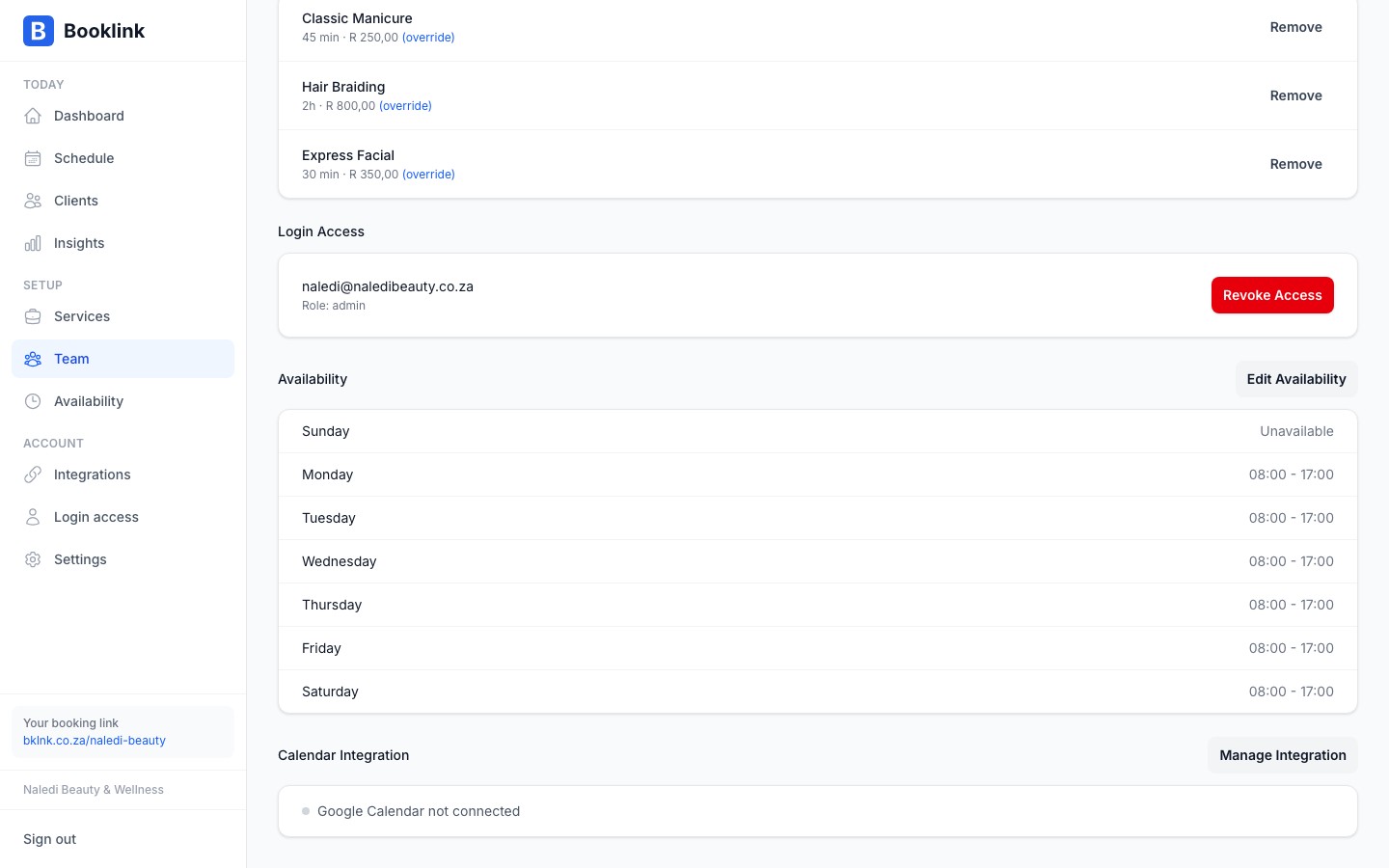
Click on a team member to open their detail page and manage their profile, hours, assigned services, Google Calendar connection, and login access.
Active and inactive team members
An active team member is visible on your booking page. Clients can select them when booking a service. An inactive team member is hidden from the booking page, so no new bookings can be made with them, but their profile and history are preserved.
Set a team member to inactive if they are on extended leave, have left the business, or if you want to temporarily remove them from the booking flow without deleting their record.
Drag to set assignment priority
Drag team members up or down in the list using the grip handle. This sets the auto-assignment priority: when a booking can go to any available team member (and your auto-assign strategy is Priority), the one nearest the top is chosen first. It is not a display order; how team members appear to customers is controlled by the team display mode.
Public team display
The Public team display card at the top of the Team page controls whether customers can pick a team member when booking, and which auto-assign strategy is used when they do not. See Team display and assignment for details.
Put your primary provider first
If one person should receive bookings before anyone else, drag them to the top of the list and keep the auto-assign strategy on Priority. Switch to Balanced if you want bookings spread evenly instead.Availability and calendar at a glance
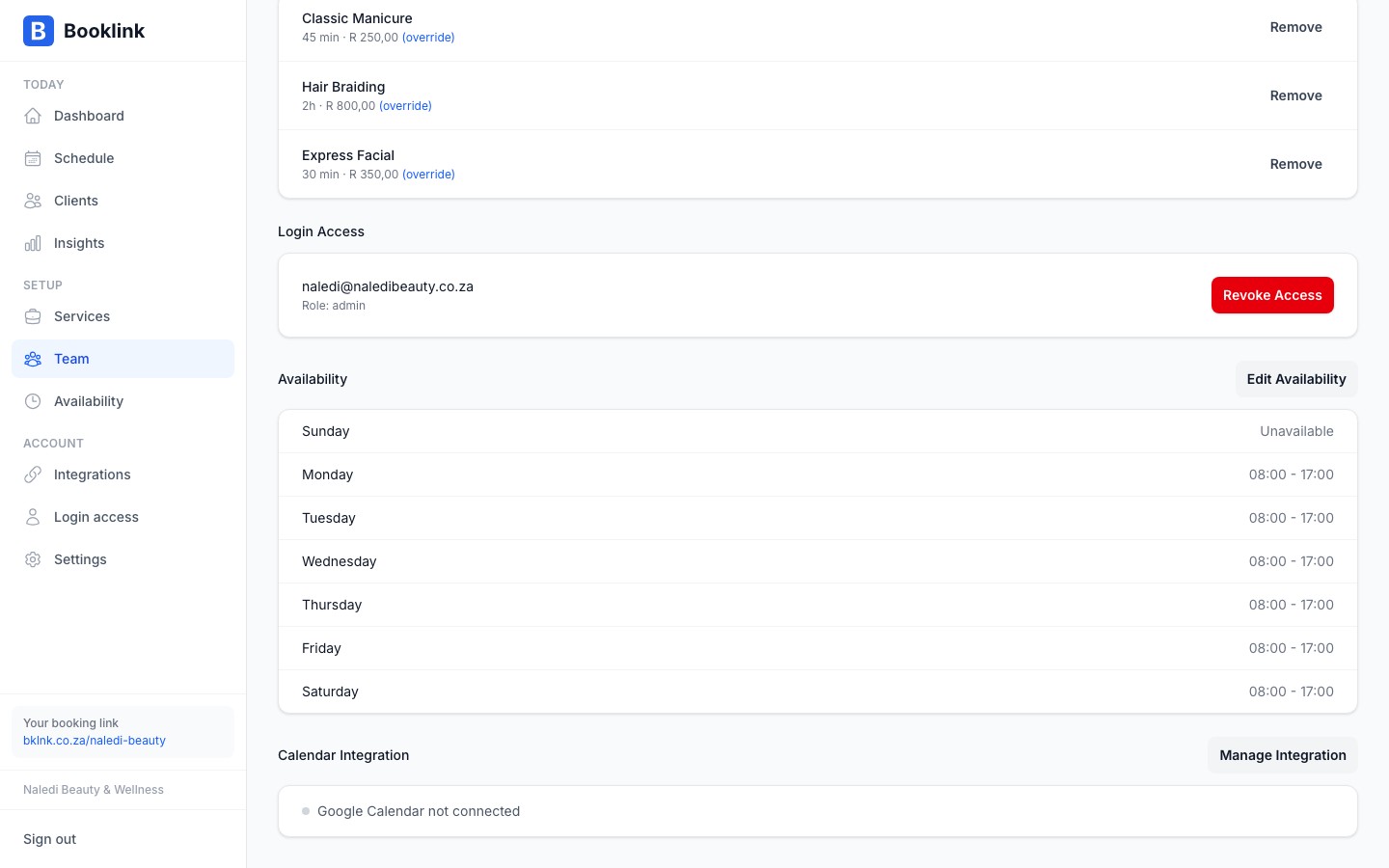
Each team member card and detail page shows a quick summary of their weekly availability and the status of any connected Google Calendar. Use this to check whether a team member's schedule is configured and whether their calendar integration is still active.
Plan limits on team members
The free plan caps the number of team members you can add. Once you reach the limit, the Add team member button is replaced with an upgrade prompt. Upgrade to a paid plan to add additional team members.