
Every user has a set of permissions that controls what they can see and do, area by area. A receptionist can run the whole calendar without touching your settings, a stylist can see only their own bookings, and a bookkeeper can see the numbers without seeing the schedule. You set permissions when you add a user and can change them at any time.
Templates
Rather than configuring every area by hand, start from a template:
- Owner: full access to everything, including settings, billing, and users.
- Front desk: runs the day-to-day. Full calendar and finances across the whole business, manages clients, can view services, team, and messages, but cannot change settings or users.
- Staff: sees only their own work. Their own calendar and their own finances, nothing else.
You can also copy from user to duplicate an existing user's setup, then tweak from there.
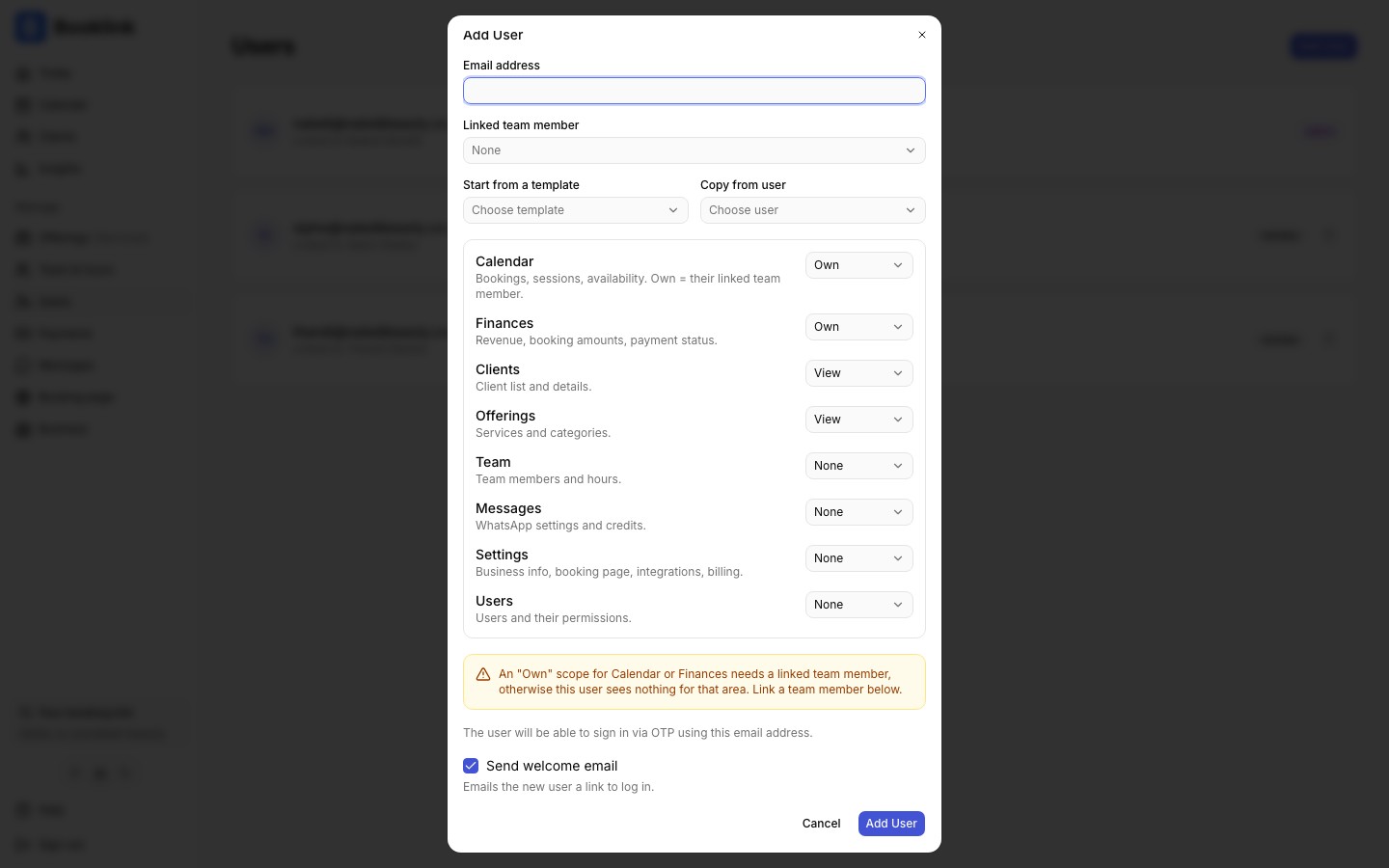
The eight areas
Permissions are set per area:
- Calendar: bookings, sessions, and availability. Levels: None / Own / All.
- Finances: revenue, booking amounts, and payment status. Levels: None / Own / All.
- Clients: the client list and details. Levels: None / View / Manage.
- Offerings: services and categories. Levels: None / View / Manage.
- Team: team members and their hours. Levels: None / View / Manage.
- Messages: WhatsApp settings and credits. Levels: None / View / Manage.
- Settings: business info, booking page, integrations, billing. Levels: None / Manage.
- Users: users and their permissions. Levels: None / Manage.
For Calendar and Finances, Own means the user sees only the work of their linked team member, while All covers the whole business. The navigation adapts automatically: pages a user cannot access simply do not appear in their sidebar.
Editing a user's permissions
- 1
Open the user
Go to Users in the sidebar and click the user you want to change.
- 2
Adjust the permissions
Apply a template, copy from another user, or change individual areas with the per-area dropdowns. The editor warns you about combinations that will not work well, for example an "Own" scope without a linked team member.
- 3
Save
Click Save. The change applies immediately; the user sees their new access the next time their app loads.
Own scope needs a linked team member
A user whose Calendar or Finances is scoped to "Own" must be linked to a team member, otherwise there is no schedule to show them. The editor flags this and you can set the link in the same dialog.Least access is safest
Give each person the smallest set of permissions that lets them do their job. You can always expand access later; it is much harder to undo someone having seen data they should not have.