
Adding a team member creates a profile for one of your service providers. Once added, you can assign services to them, set their availability, and optionally give them a login so they can manage their own schedule.
How to add a team member
- 1
Open the Add Team Member form
Navigate to Team & hours in the sidebar and click Add Team Member in the top-right corner.
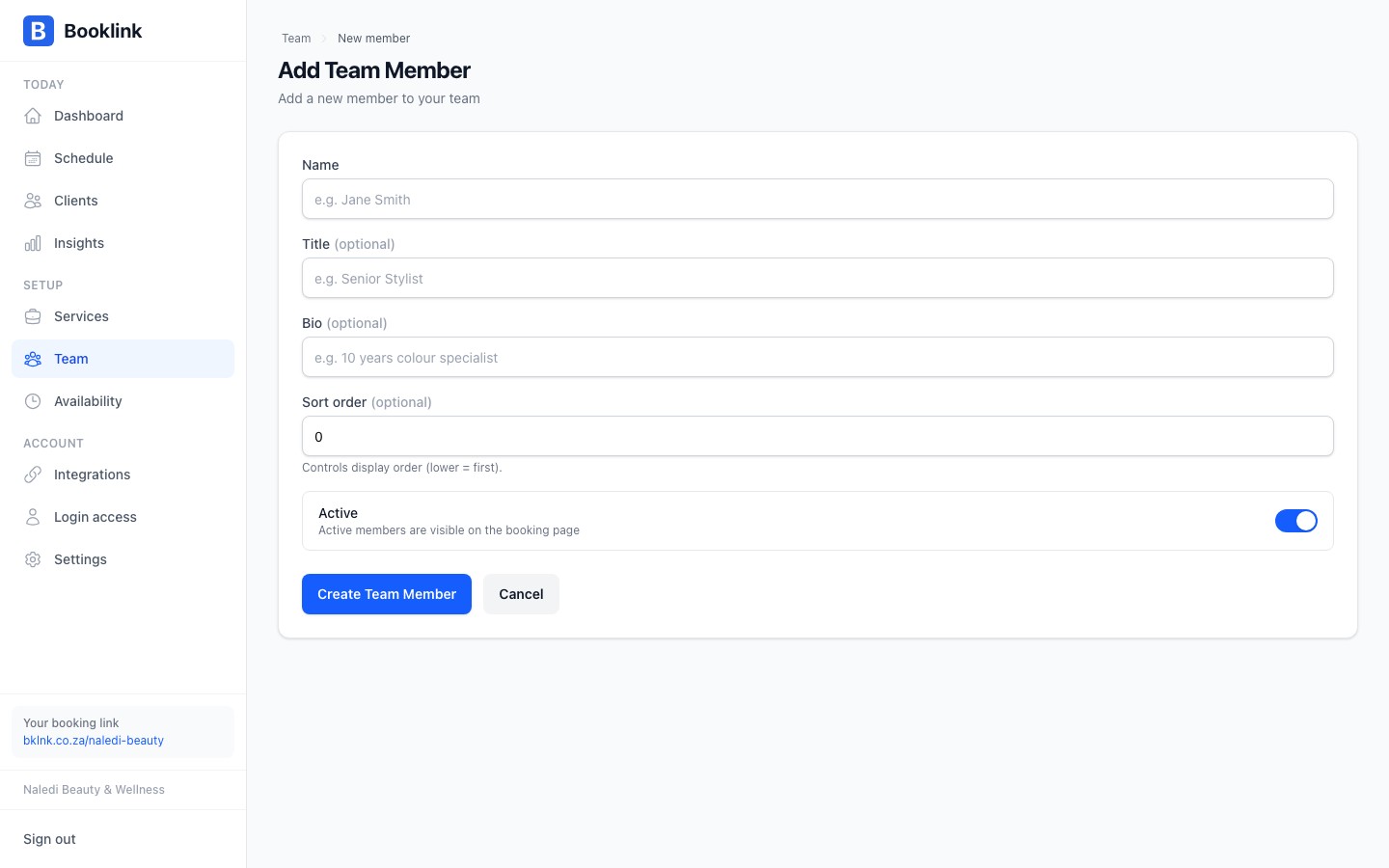
- 2
Enter their name and title
Enter the team member's display name as it will appear to clients (e.g. "Thandi Dlamini"). The title is their job role, shown below their name on the booking page (e.g. "Senior Nail Technician", "Massage Therapist").
- 3
Add a bio (optional)
The bio is a short paragraph about the team member — their experience, specialities, or a friendly introduction. Clients see this when selecting who to book with. A good bio builds trust and helps clients choose the right person.
Example: "Thandi has 6 years of experience in nail artistry and specialises in gel extensions and nail art. She is passionate about helping clients feel confident and pampered."
- 4
Add a notification email (optional)
The notification email receives booking notifications for appointments and sessions assigned to this team member, so they always know when something lands on their schedule. It does not grant login access; that is a separate step.
- 5
Save the team member
Click Add Team Member. You'll be taken to the team member's detail page, where you can assign services and set their hours.
Note
Adding a team member does not automatically assign any services or set any availability. After saving, assign which services they offer from their detail page, and then set up their weekly hours.Assignment order
Where a team member sits in the Team list controls auto-assignment priority, not how they display to customers. Drag members up or down on the Team page to change it.Profile photos
A profile photo makes a big difference to the client experience. Clients are more likely to choose a team member they can see. Upload a clear, professional photo on the team member's detail page.