
Booklink uses passwordless login. Each time you log in, Booklink emails you a fresh 6-digit code instead of asking for a password. The whole thing takes about 30 seconds.
How to log in
- 1
Go to app.booklink.co.za
Open app.booklink.co.za in your browser. Bookmark it, or add it to your phone's home screen, so you do not have to search for it next time.

- 2
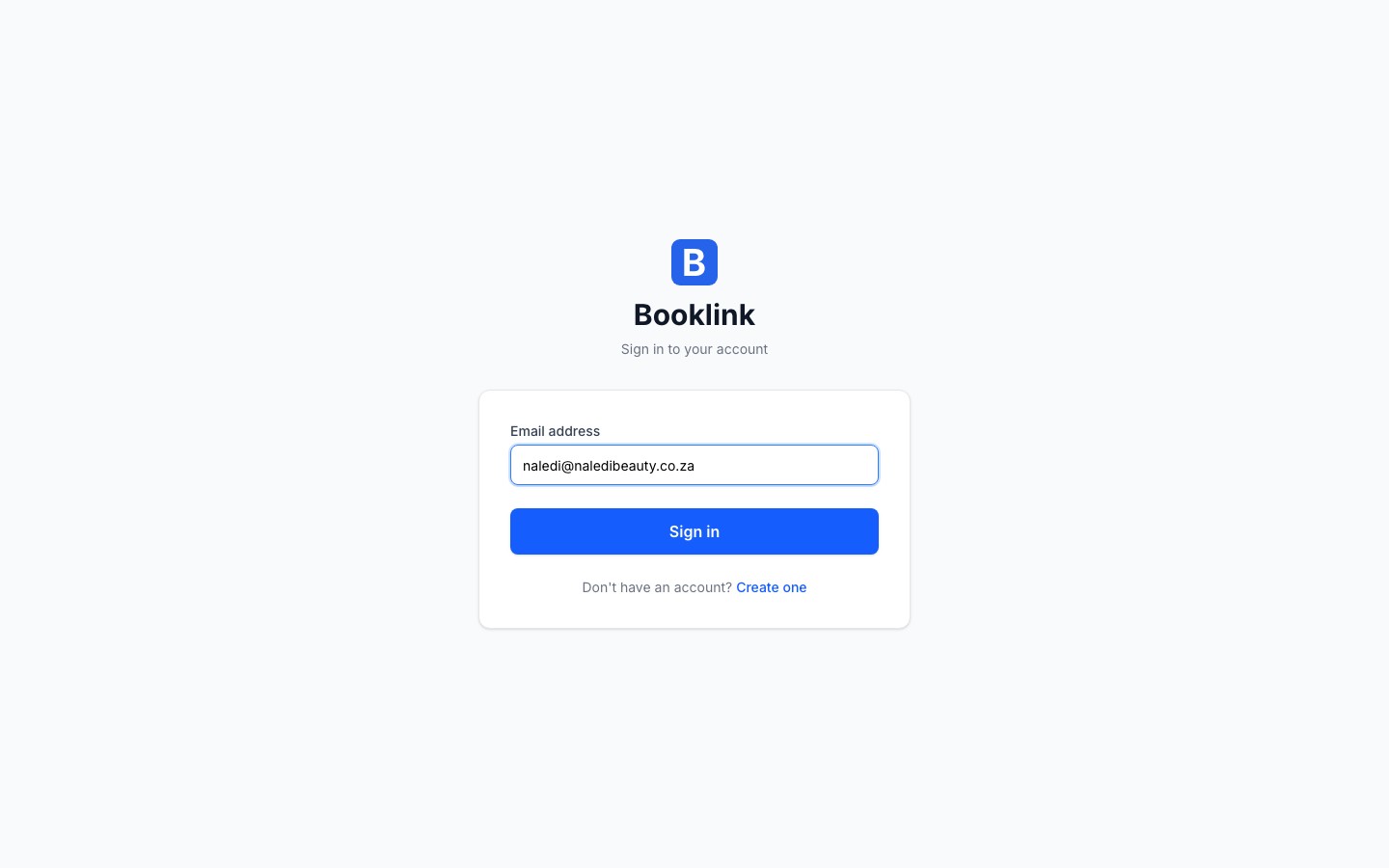
Enter your email address
Type the email address you registered with and click Continue. Use the same address every time. A different address is treated as a different account.
- 3
Enter the 6-digit code from your email
Booklink emails you a one-time code. Type it into the boxes on the verification screen and you are in. The code is valid for 10 minutes.
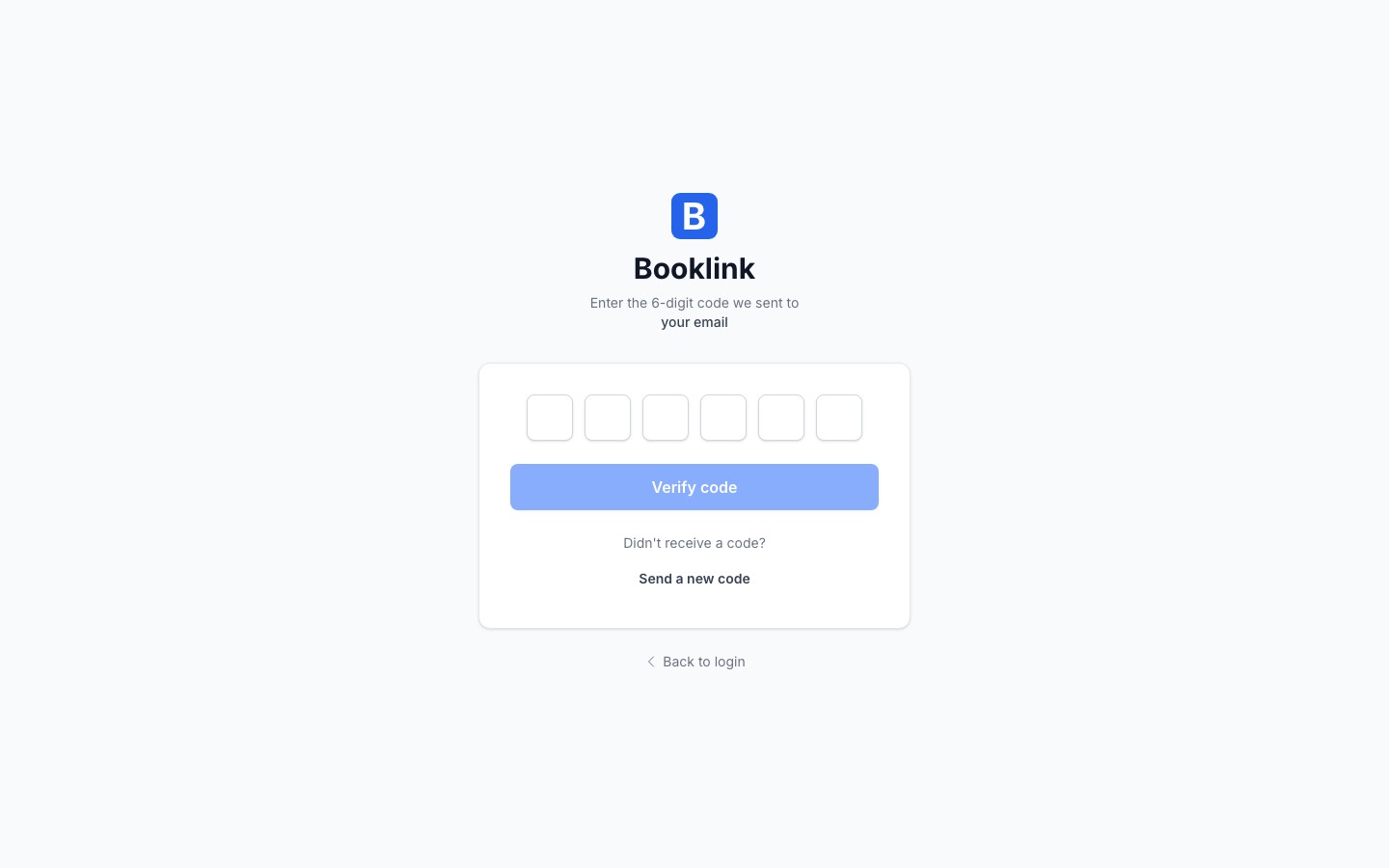
Code not arriving?
Check your spam or junk folder first. If it is not there after a minute or two, go back to the login page and request a new code. Only the newest code works.Note
Team members log in with their own email address. If a stylist, trainer or assistant cannot log in, check that they have been given login access under Team members.Looking for your booking page instead?
Your clients do not log in anywhere. They book through your public booking link, which looks like bklnk.co.za/your-slug. You will find it on your dashboard under Share your booking link.