
Today is the first page you see when you log in to Booklink. It greets you by name, shows everything happening today, surfaces anything that needs your attention, and gives you a quick read on how the week and month are going. Think of it as your command centre: if something needs you, it shows up here first.
Finding your way around
The sidebar is split into three groups:
- Run (the top group): the pages you use every day. Today, Calendar, Clients, and Reports (the Overview tab shows your monthly stats).
- Manage: what your business sells and who delivers it. Offerings (your services), Packages, Team & hours, and Rooms.
- Settings: the pages you set up once and visit occasionally. Branding, Defaults, Messages, Payments, Webhooks, Account, and Users.
Setup progress
While your account is still being set up, the Today page shows a Finish setting up card listing the remaining steps, such as adding your first service or setting your hours. Click Continue setup to pick up where you left off. Once setup is complete, the card disappears and the full Today view takes over.
This week and this month
Two cards at the top show your booking count for the current week and the current month. If your account has revenue visibility, they also show the revenue total for each window, so you can see at a glance how business is tracking.
Needs you
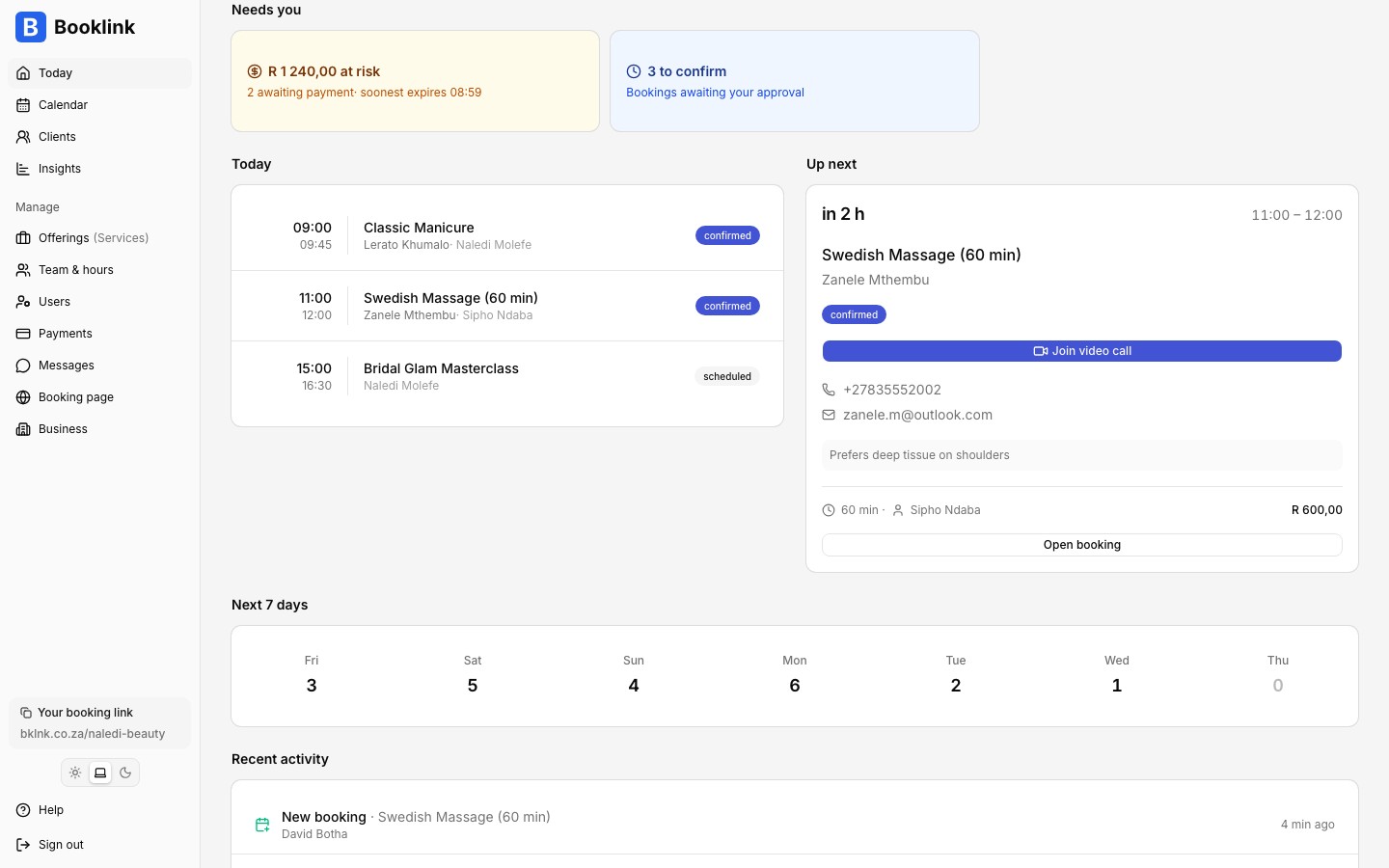
When something requires action, a Needs you band appears with up to three cards:
- Awaiting payment (amber): bookings where the customer still has to complete payment, including the total amount at risk and the soonest payment expiry.
- To confirm (blue): pending bookings waiting for your approval.
- Conflicts (red): double-booked staff that need untangling.
Each card is a shortcut. Clicking it takes you straight to the relevant view on the Calendar page.
Today and up next
The Today list shows the day's appointments and group sessions in time order, with the current one highlighted. Click any item to open its detail page. Next to it, the Up next card shows your next upcoming appointment with a countdown, so you always know what is coming.
Next 7 days and recent activity
Below the day's schedule, a Next 7 days strip shows the booking count for each of the coming days. Click any day to jump to the week view on the Calendar page. A Recent activity feed lists the latest bookings, cancellations, and reschedules so you can catch up after time away.
Your booking link
At the bottom of the Today page you'll find your personalised booking link. This is the URL you share with clients so they can book with you. Copy it with one click, or use the share buttons to send it via WhatsApp, email, or social media.
Viewing as a team member
If you manage a team, a View as dropdown appears in the top-right corner of the Today page. Pick a team member to see their day exactly as they would: their appointments, their numbers, their week.