
Connecting Google Calendar allows Booklink to see when you (or a team member) are already busy and automatically block those times from being booked. It is the most effective way to prevent double-bookings when you use Google Calendar for personal or other business appointments.
How it works
Once connected, Booklink checks the Google Calendar in real time whenever a client views available time slots on your booking page. Any calendar events marked as Busy are hidden from the available slots shown to clients. You do not need to manually block time. Simply add events to Google Calendar as normal and Booklink handles the rest.
Google Calendar integration is set up per team member, so each person's own calendar protects their own schedule. It is a Pro feature.
Connecting Google Calendar
- 1
Open the team member's Calendar page
Navigate to Team & hours, open the team member, and click Connect next to the Calendar section.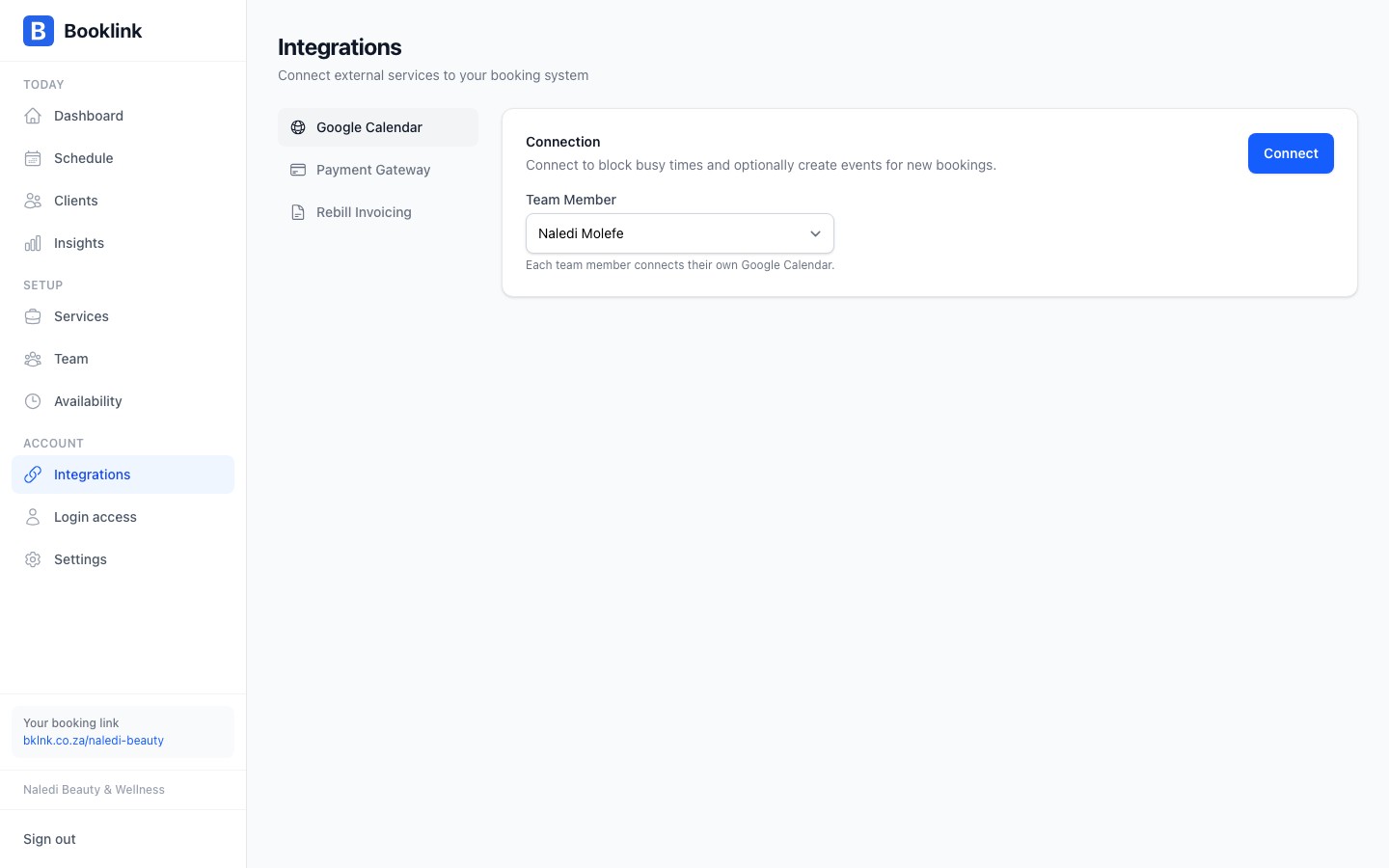
- 2
Click Connect Google
Click the Connect Google button. You will be redirected to Google's OAuth consent screen. - 3
Grant calendar access
Sign in to the Google account whose calendar you want to use for this team member. Review the permissions Booklink is requesting, then click Allow. - 4
Integration is active
You are returned to the team member's Calendar page, which now shows the connected calendar.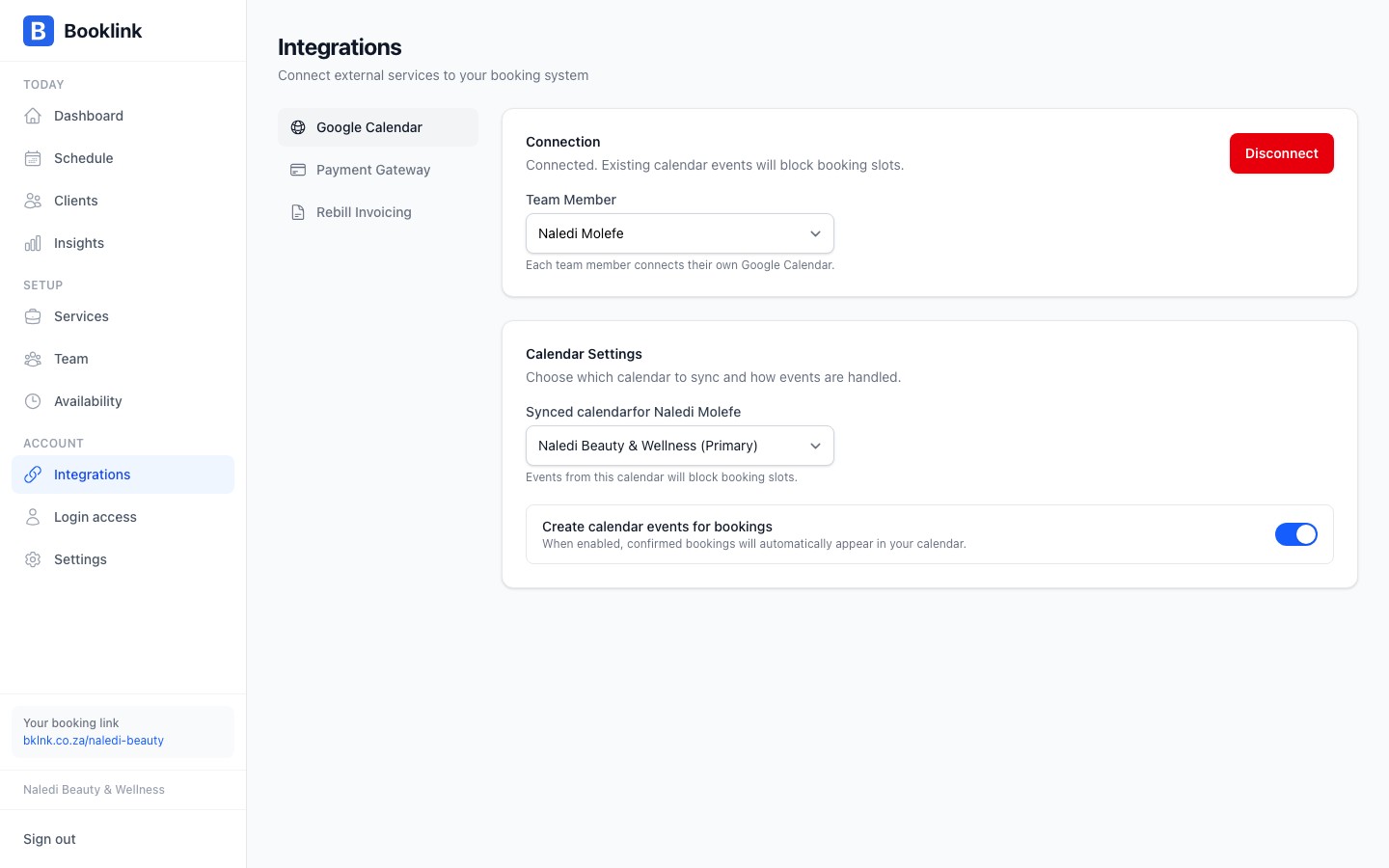
Per team member setup
Each team member can have their own personal or work Google Calendar connected. When Booklink checks availability for a specific team member, it consults that team member's connected calendar. Repeat the connection steps from each member's profile.
Disconnecting Google Calendar
To disconnect, open the team member's Calendar page and click Disconnect. This immediately stops Booklink from reading that calendar. Existing bookings are not affected, but the calendar's events will no longer block new booking slots.
Use a dedicated Google account
If you prefer to keep your personal Google account separate, create a dedicated Google account for your business and connect that. You can then add personal busy times to a shared calendar that both accounts can see.